
Redirect to URL
Use Redirect to URL when respondents should be sent to another page, such as a confirmation, payment, or next-step flow.
To add a Redirect to URL question to your form
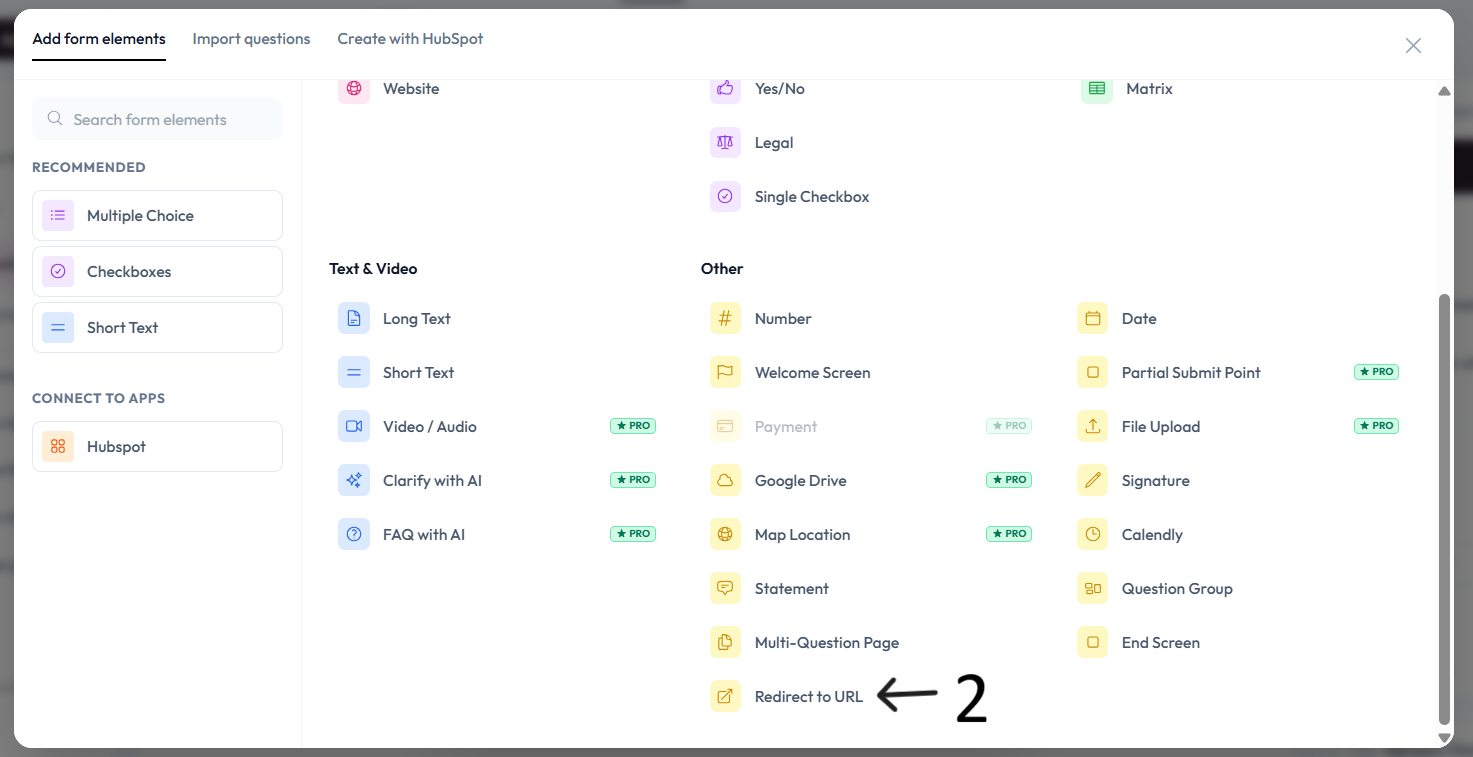
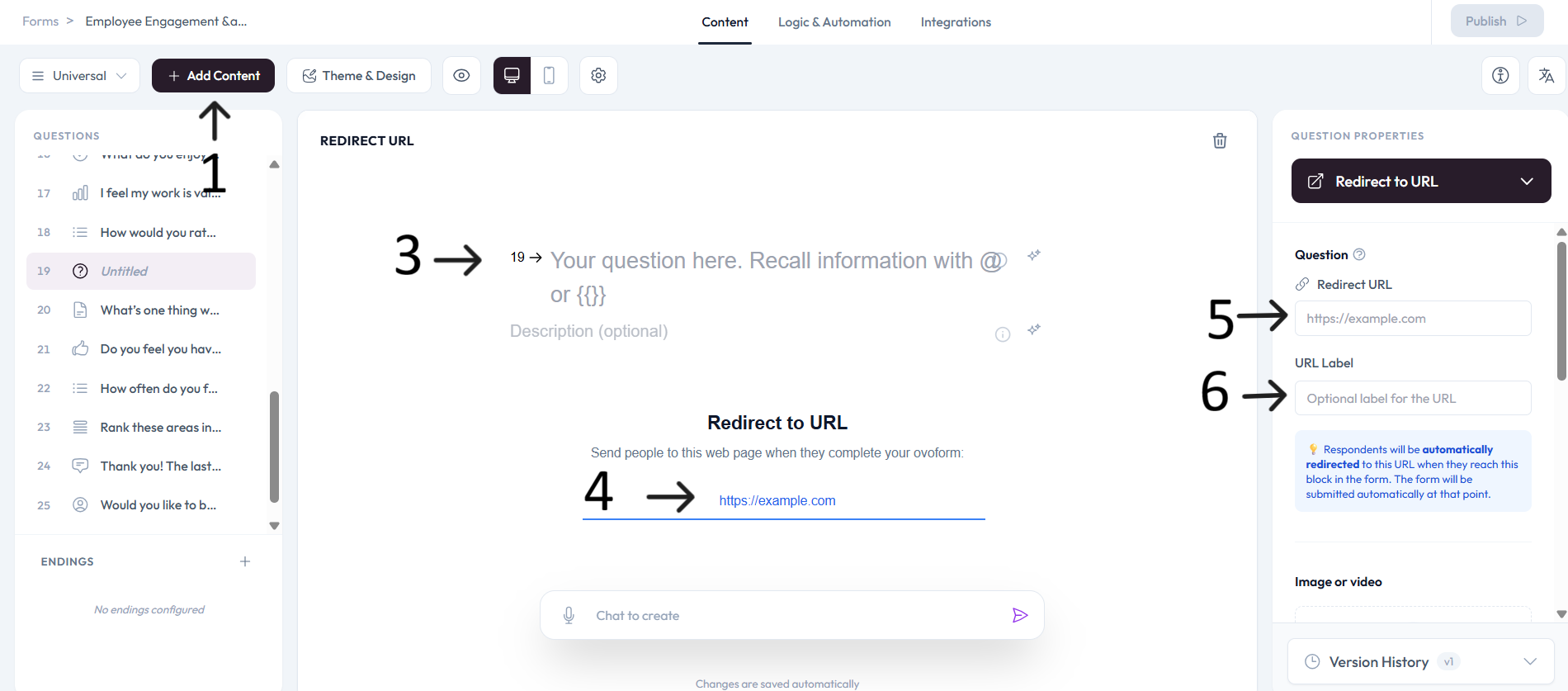
Open an existing form or create a new one, then click Add content.
Select Redirect to URL from the question type list.
Type your question in the placeholder field and add an optional description.
Set the destination URL so respondents are directed to the required page.
Settings
In the Question panel, enter the Redirect URL (for example, https://example.com).
Set an optional URL Label when you want custom link text shown to respondents.
Respondents are automatically redirected when they reach this block, and the form is submitted automatically at that point.
Add an image or video to provide context for this question.