
Partial Submit Point
Use a Partial Submit Point when you want to save respondent data at a specific checkpoint before the full form is completed.
When respondents reach this point, Ovoform collects the answers they have provided so far. Each partial response counts toward your response quota.
How to add a Partial Submit Point
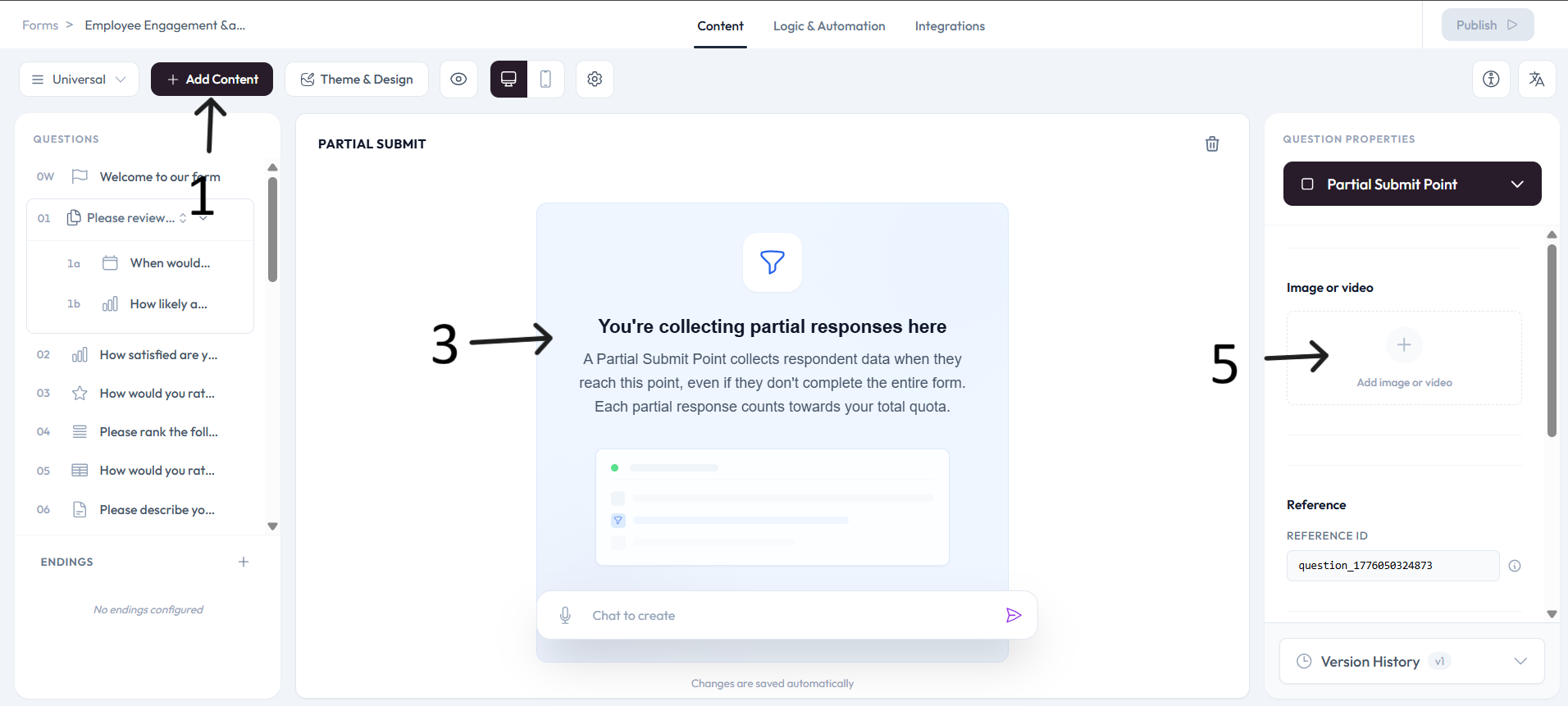
Open the form where you want to collect partial responses and click Add Content.
Select Partial Submit Point from the Other section of the question type menu.
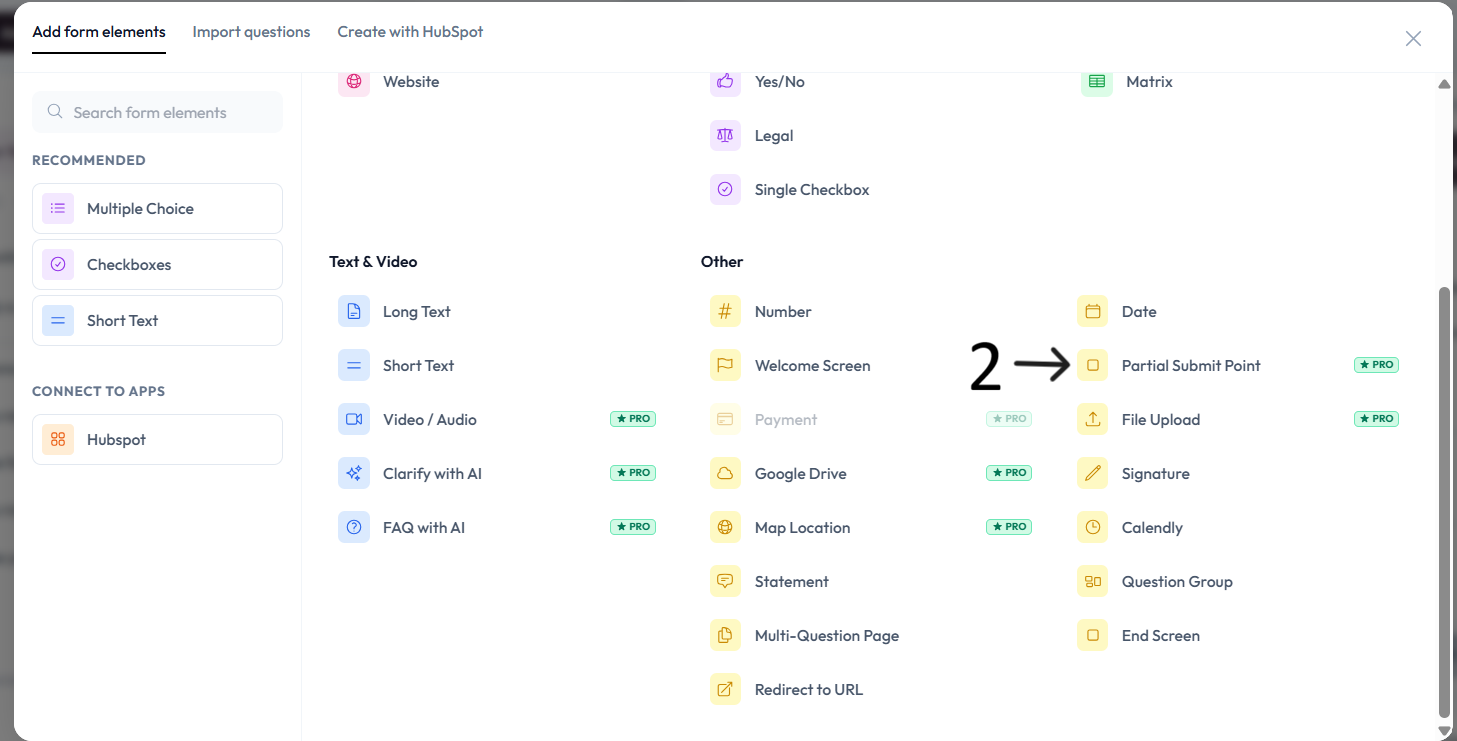
Place the Partial Submit Point at the checkpoint where respondent answers should be saved.
Review the checkpoint card in the editor so you understand what respondents will trigger when they reach this point.
Settings
Use Image or video when you want to add visual context to the checkpoint.
Review the Reference ID in the right-side panel when you need to identify this checkpoint in analytics, exports, or workflows.
Best practices
Place the checkpoint after the highest-value questions so partial responses contain useful context.
Tell respondents clearly when sensitive information is being collected before final submission.
Test the form once and verify that crossing the checkpoint creates a partial response as expected.