
Calendly
Use the Calendly question when you want respondents to book a meeting, demo, appointment, or interview time directly inside your form.
You can connect a Calendly account to choose an event type, or enter a public Calendly event URL manually.
How to add a Calendly question
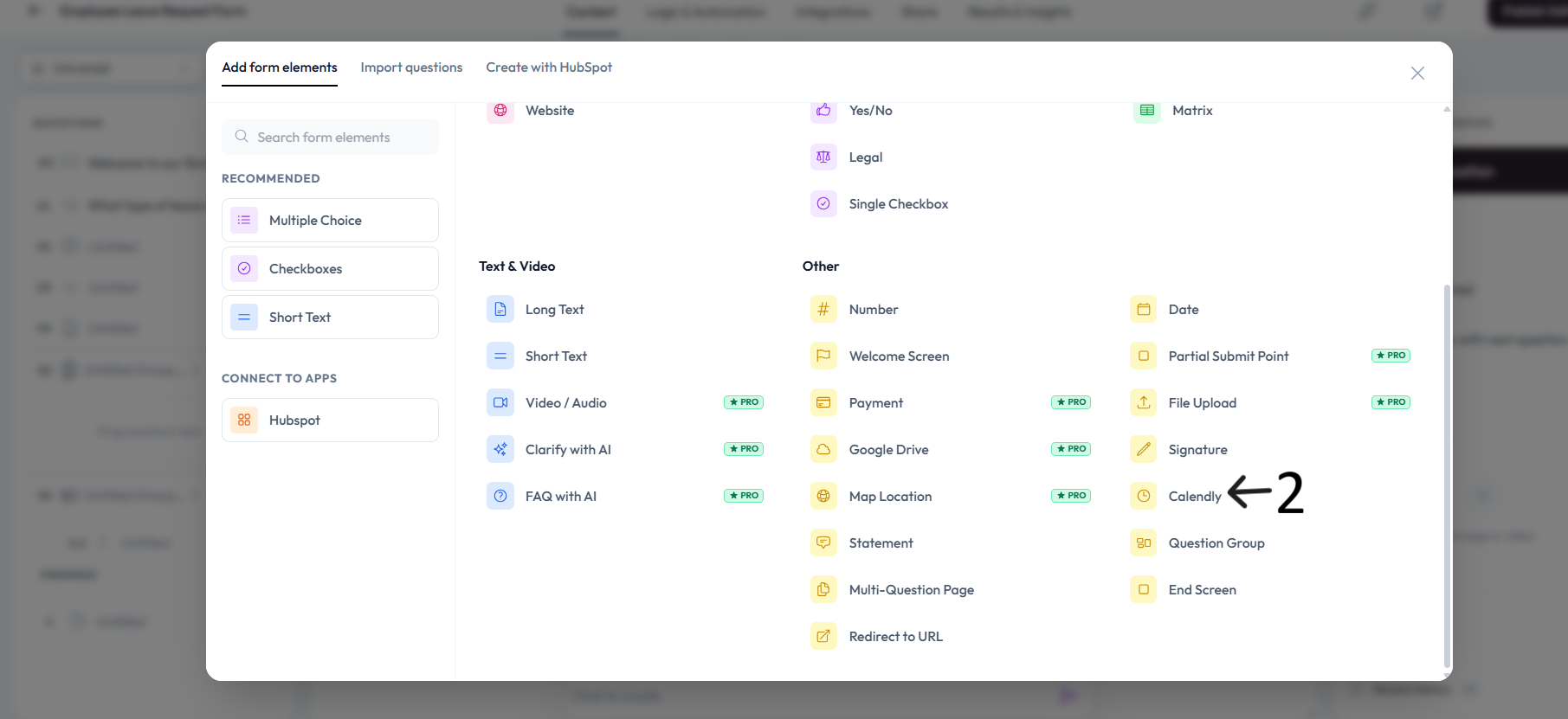
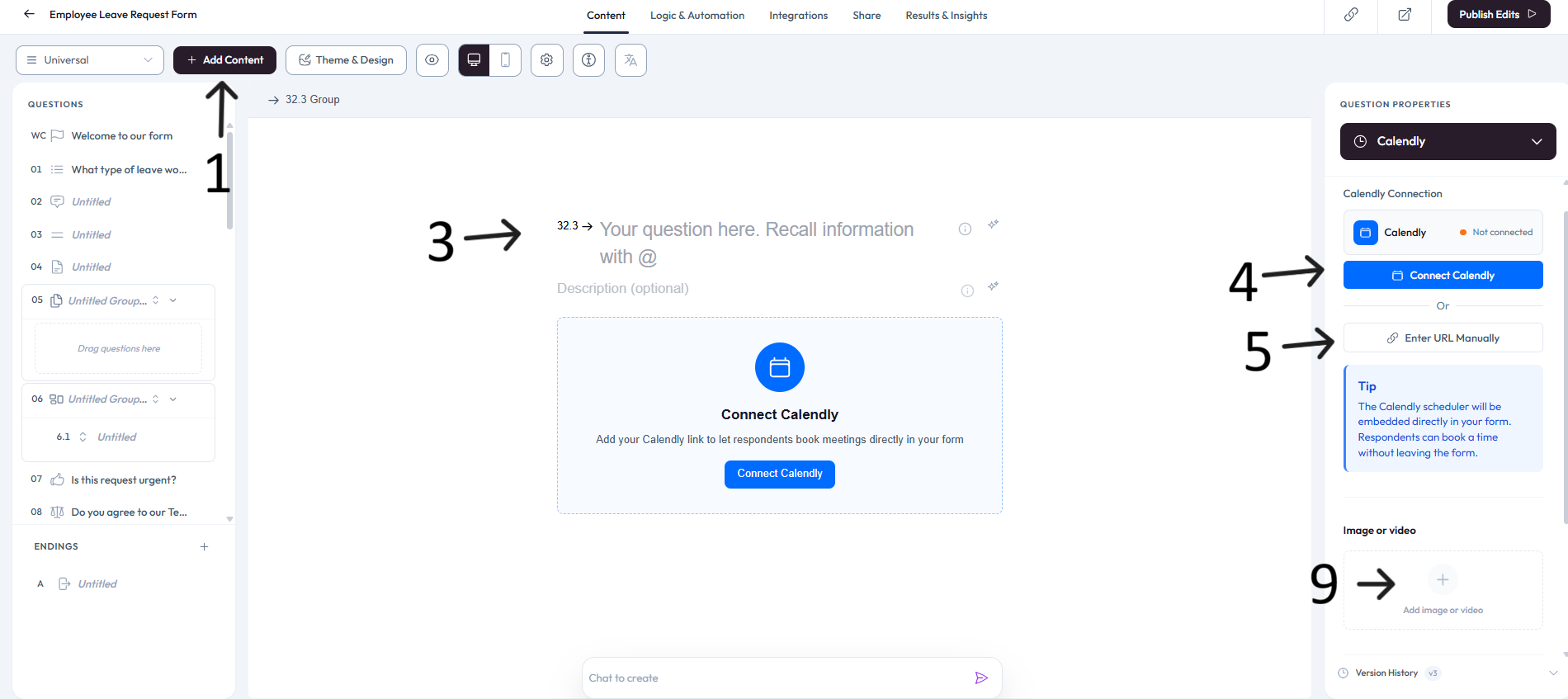
Open the form where you want respondents to book a time and click Add Content.
Select Calendly from the Other section of the question type menu.
Type your Calendly question in the question placeholder and add an optional description.
In Calendly Connection, click Connect Calendly to link your Calendly account.
Alternatively, click Enter URL Manually and paste a public Calendly scheduling link.
After connecting, choose the Calendly event type respondents should book.
Settings
Use Show event details to respondents when you want the event name and duration visible inside the embed.
Use Remove Calendly From Question when you need to clear the selected event or manual link.
Use Image or video when you want to add visual context to the Calendly question.
Best practices
Use one clear event type for each Calendly question so respondents know what they are booking.
Test the booking flow before publishing to confirm the scheduler opens correctly inside the form.
Use a manual URL only for public Calendly event links that respondents can access.
Keep the question text specific, for example Book your onboarding call or Schedule your interview.