
End Screen
Every form ends with an End Screen after respondents click submit. With scoring, outcomes, or branching logic, you can show different end screens based on responses.
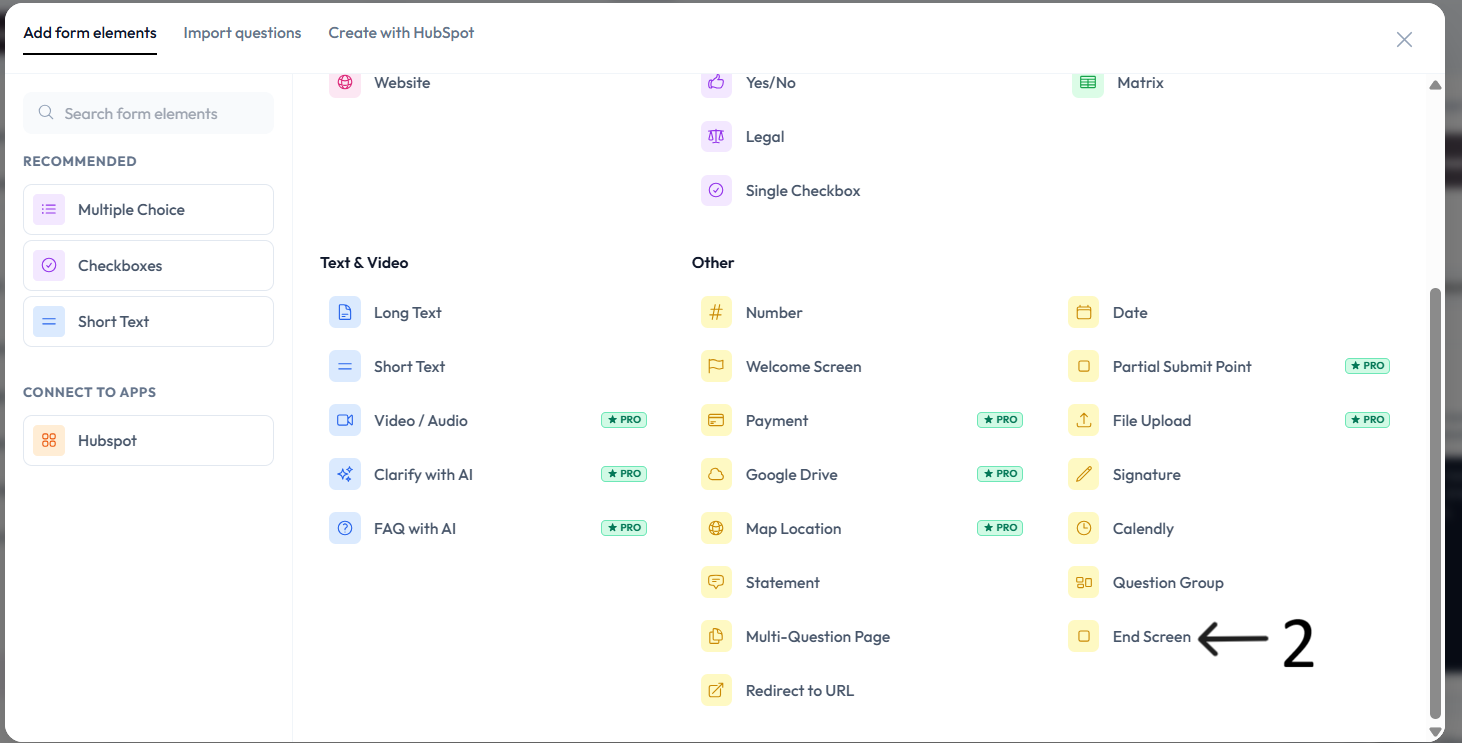
Add End Screens to your form
Open your form from the workspace.
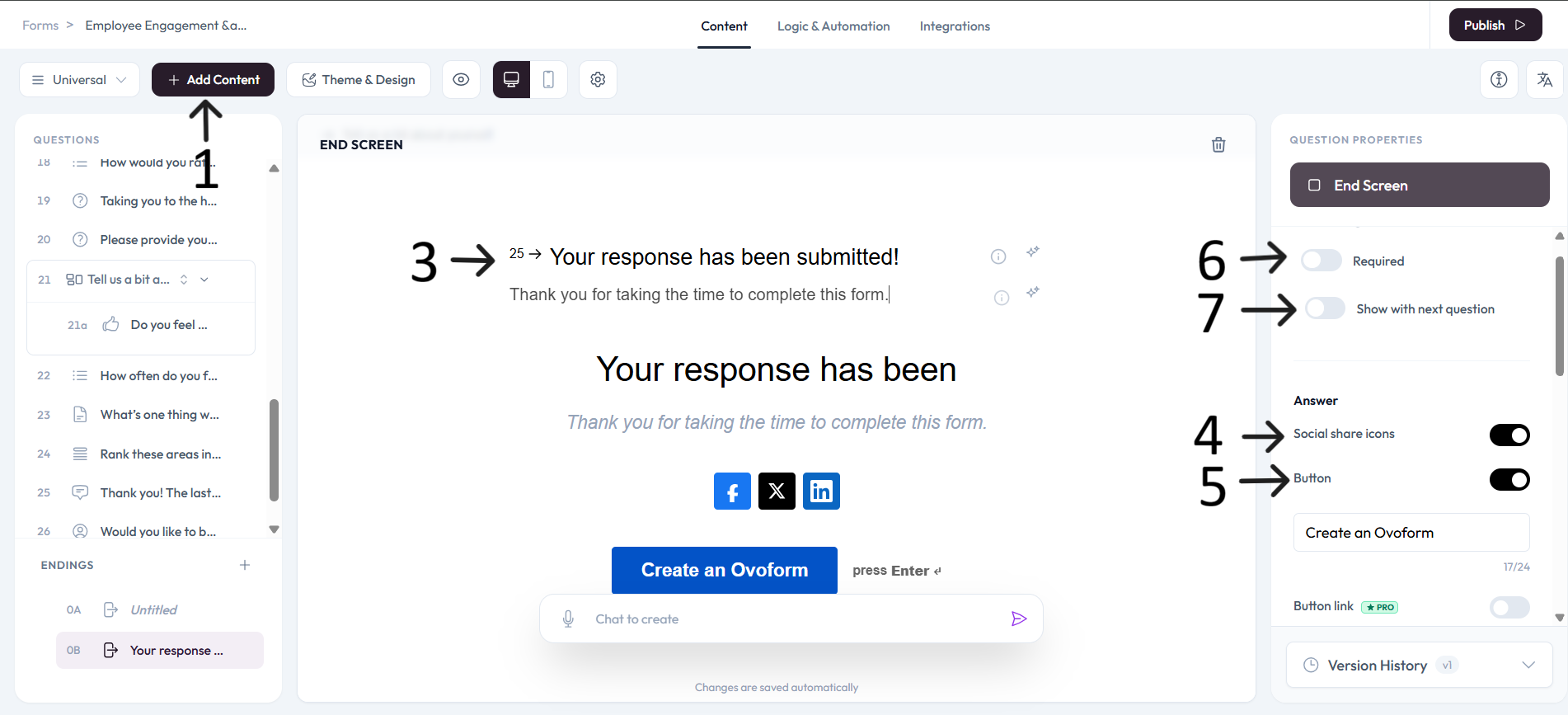
In the left content panel, open Endings and select the End Screen you want to edit.
Enter the end message in the End Screen text placeholder.
Use right-side settings to enable or disable social icons and buttons.
Enable the button link option when you want users to navigate to a specific URL.
Best practices
Write a clear thank-you message and expected next step.
Use outcome-specific end screens when branching paths are different.
Validate redirect links before publishing.
Settings
Use right-side Question settings to mark this question as required.
Enable Show with next question when you want this question to appear in the same step.
Add an image or video to provide context for this question.