
HubSpot Integration
What is this integration?Automatically sync your form data to HubSpot and keep your CRM updated with new leads.
HubSpot integration creates or updates contacts in real time and lets you map form questions directly to HubSpot CRM properties.
Before you start
Your form must include an Email field so it can be mapped to HubSpot Contact Email.
How to set up
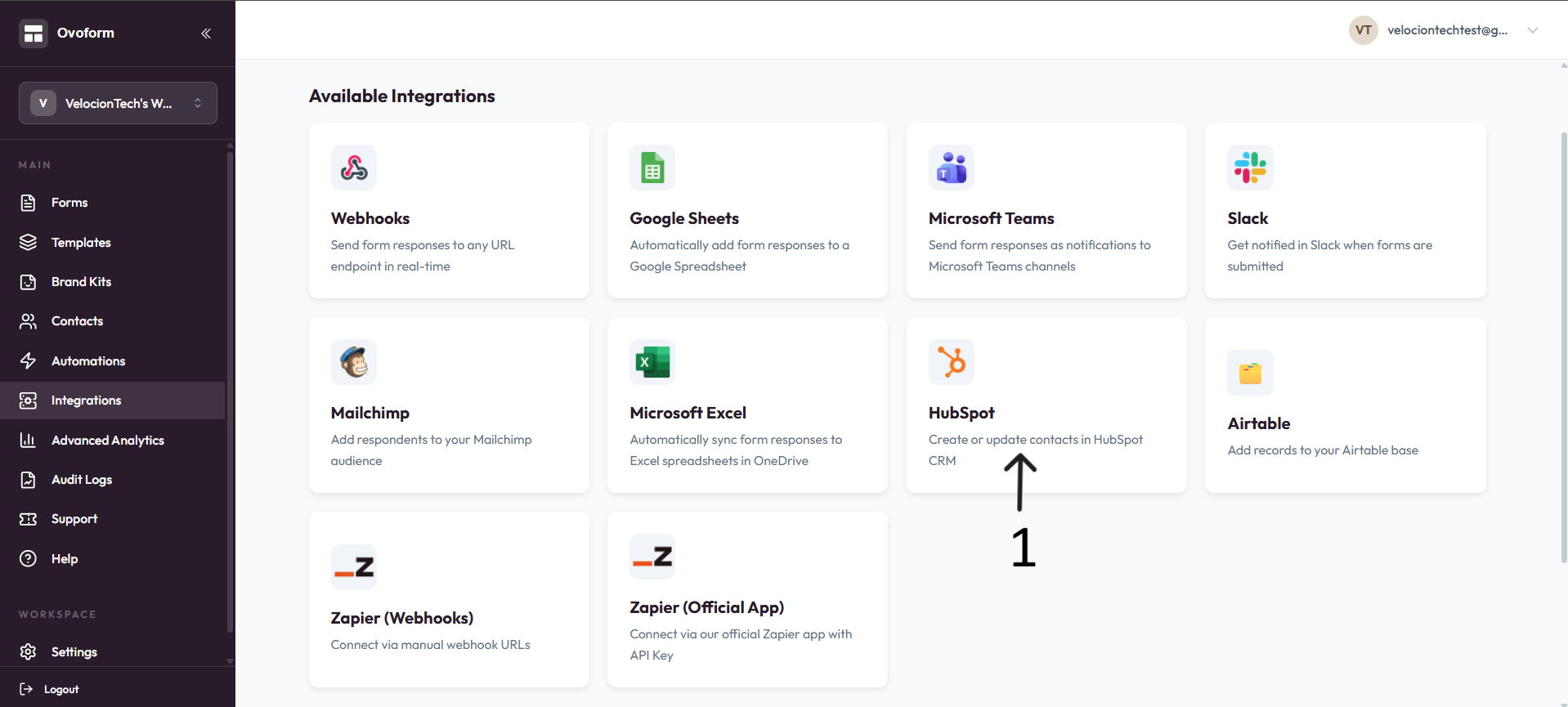
Go to OvoForm dashboard, click Integrations in the sidebar, then open HubSpot.
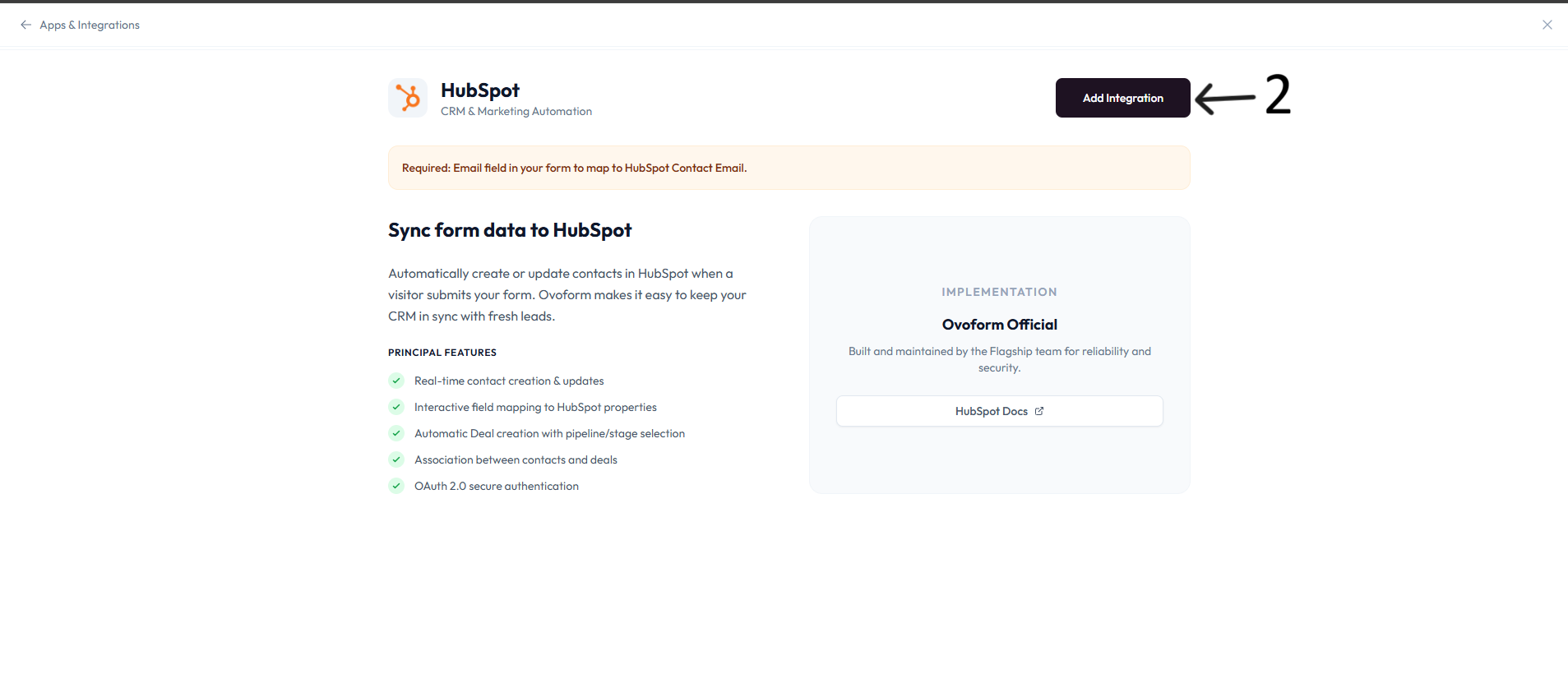
Click Add Integration.
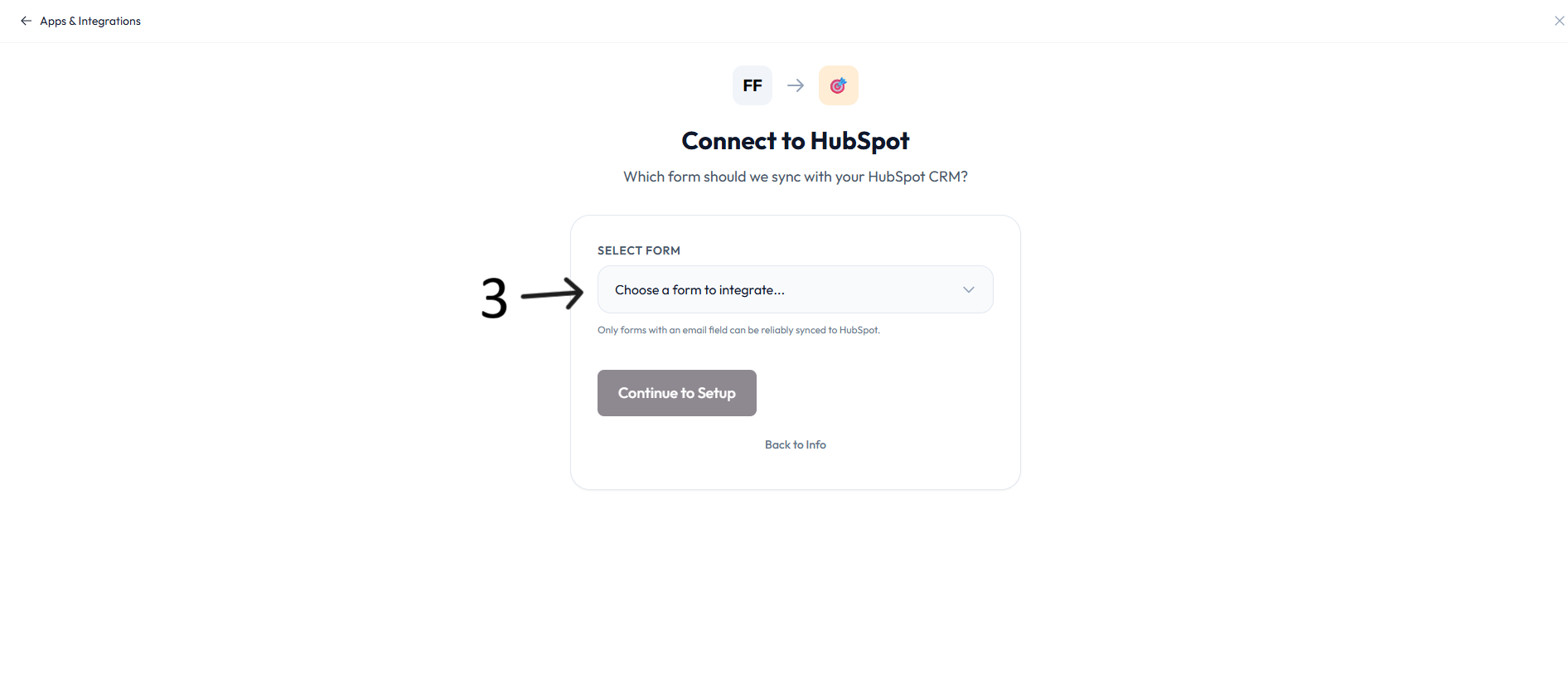
In Connect to HubSpot, choose a form from Choose a form to integrate and click Continue to Setup.
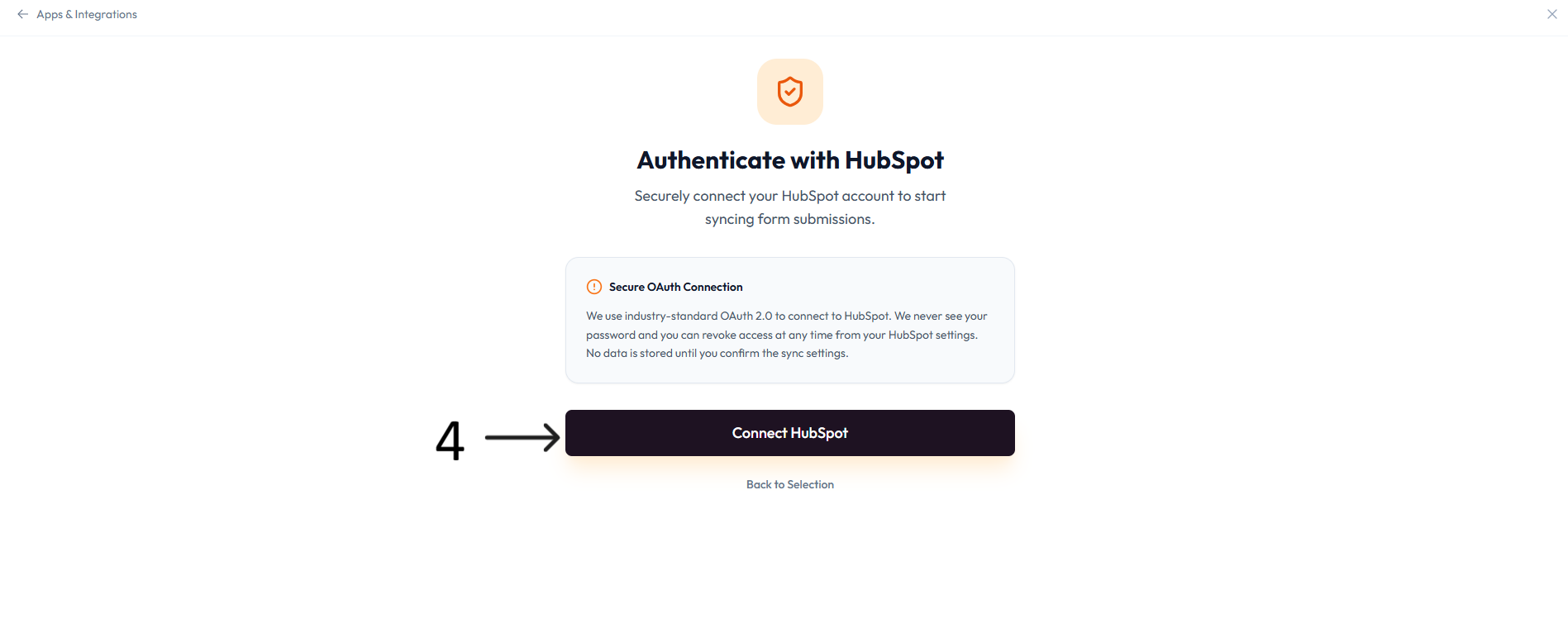
On Authenticate with HubSpot, click Connect HubSpot and complete OAuth authorization.
In Configure HubSpot Sync, confirm or edit the Integration Name.
In Field Mapping, map HubSpot properties to form questions. Contact Email mapping is required to save.
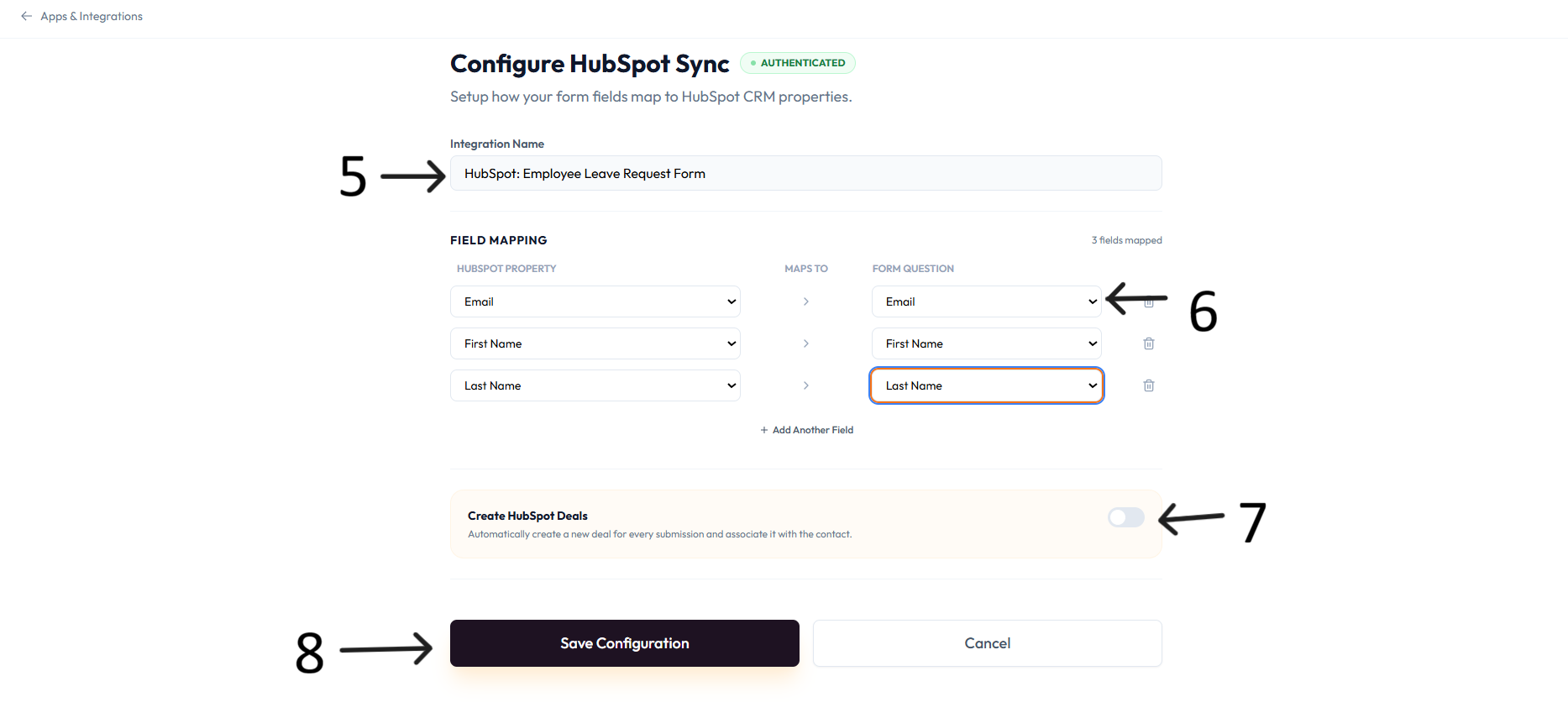
Optional: enable Create HubSpot Deals when you want a deal created for each submission.
Click Save Configuration.
New submissions will now sync to HubSpot based on your mapping settings.
What you can do
Create or update HubSpot contacts in real time.
Map form questions to HubSpot properties.
Add or remove mapped fields as needed.
Optionally create HubSpot deals for new submissions.
Use secure OAuth 2.0 authentication.
Resources
HubSpot Docs: available via the integration page.