
Mailchimp Integration
What is this integration?Send form responses to Mailchimp and automatically grow your audience as new submissions come in. Each connected form can add subscribers directly to a Mailchimp audience list without manual imports.
You can choose the target audience, map form questions to Mailchimp fields, add tags, and configure double opt-in so your email marketing workflow stays organized from the start.
Before you start
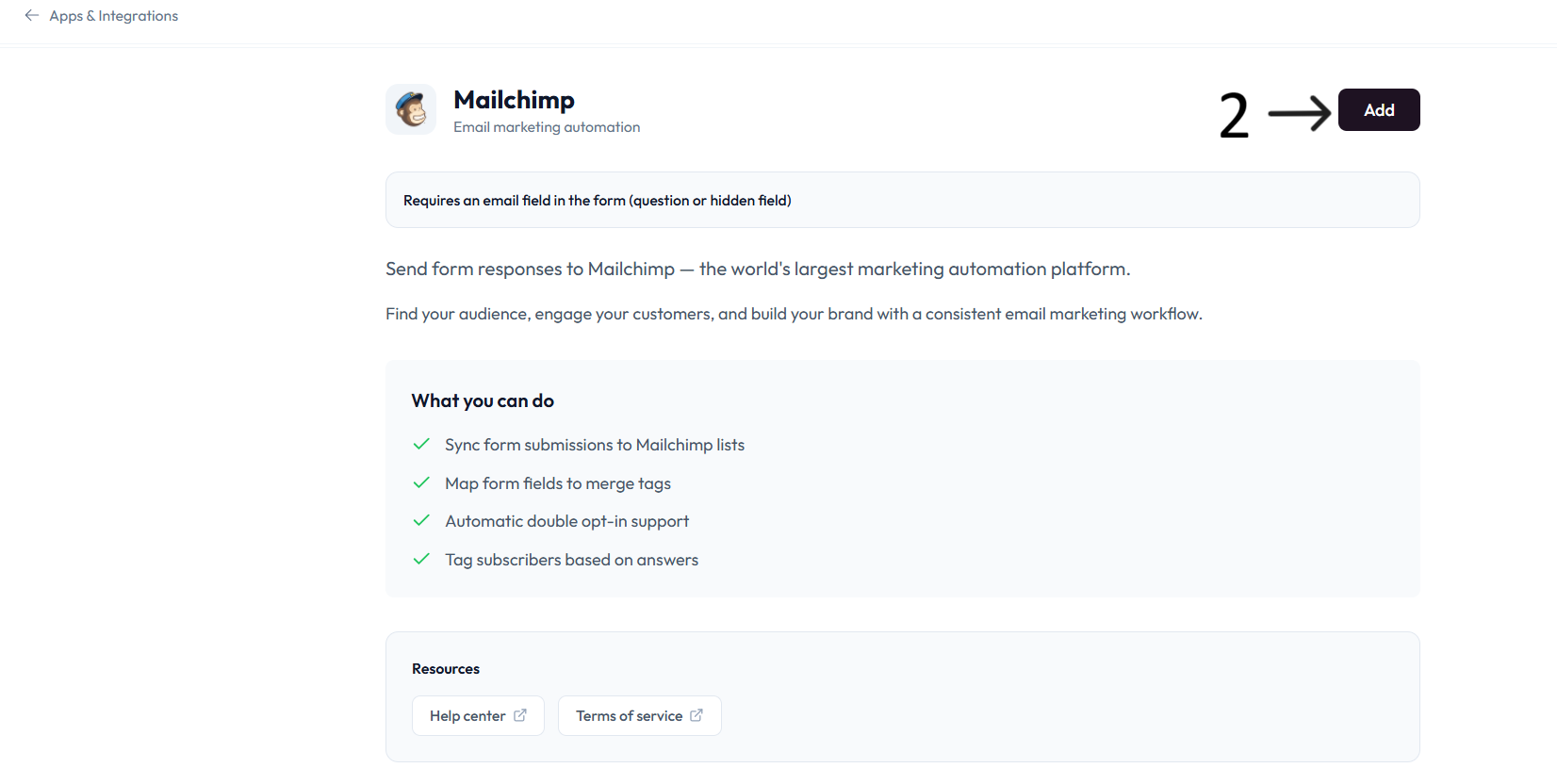
Your form must include an Email field, either as a visible question or a hidden field, before you connect Mailchimp.
How to set up
Go to OvoForm dashboard and click Integrations in the sidebar.
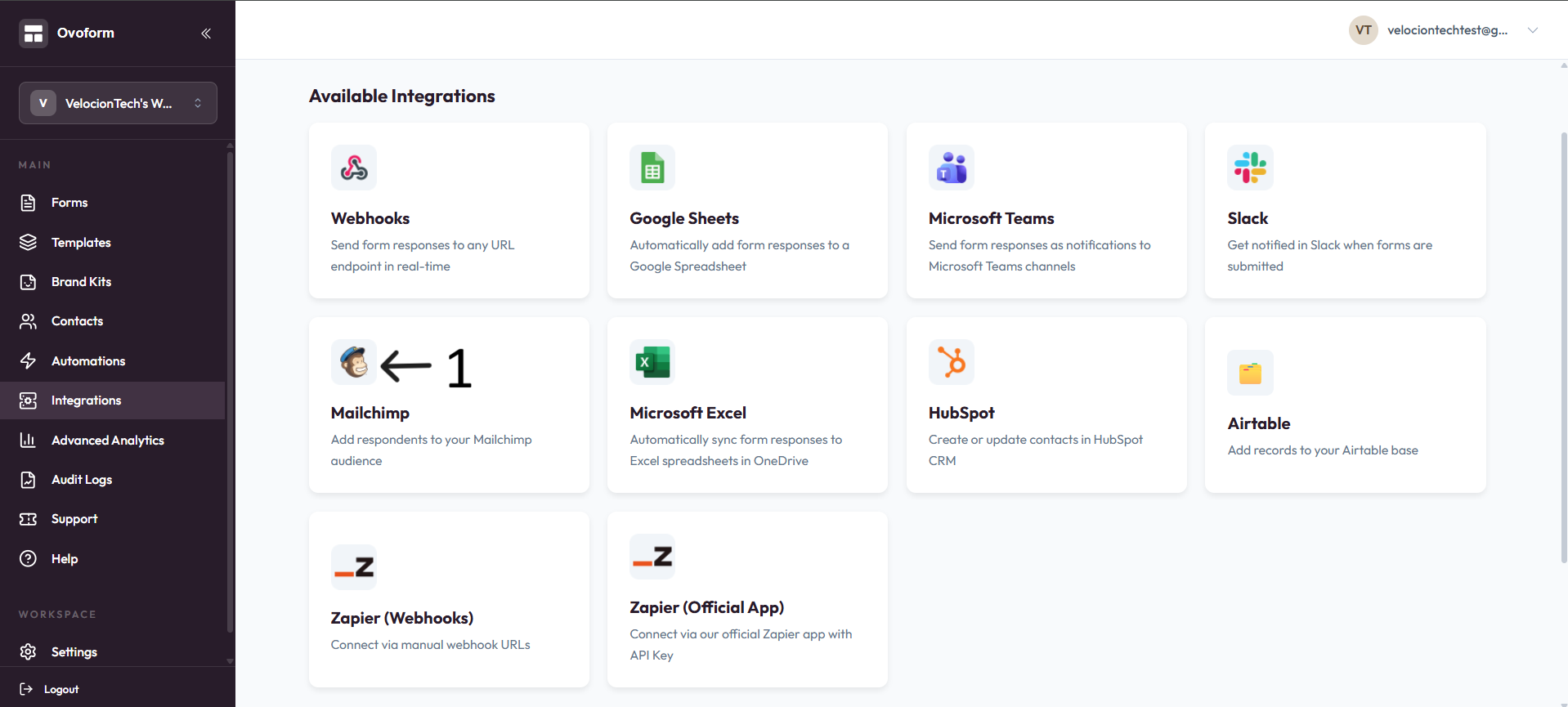
Open Mailchimp and click Add.
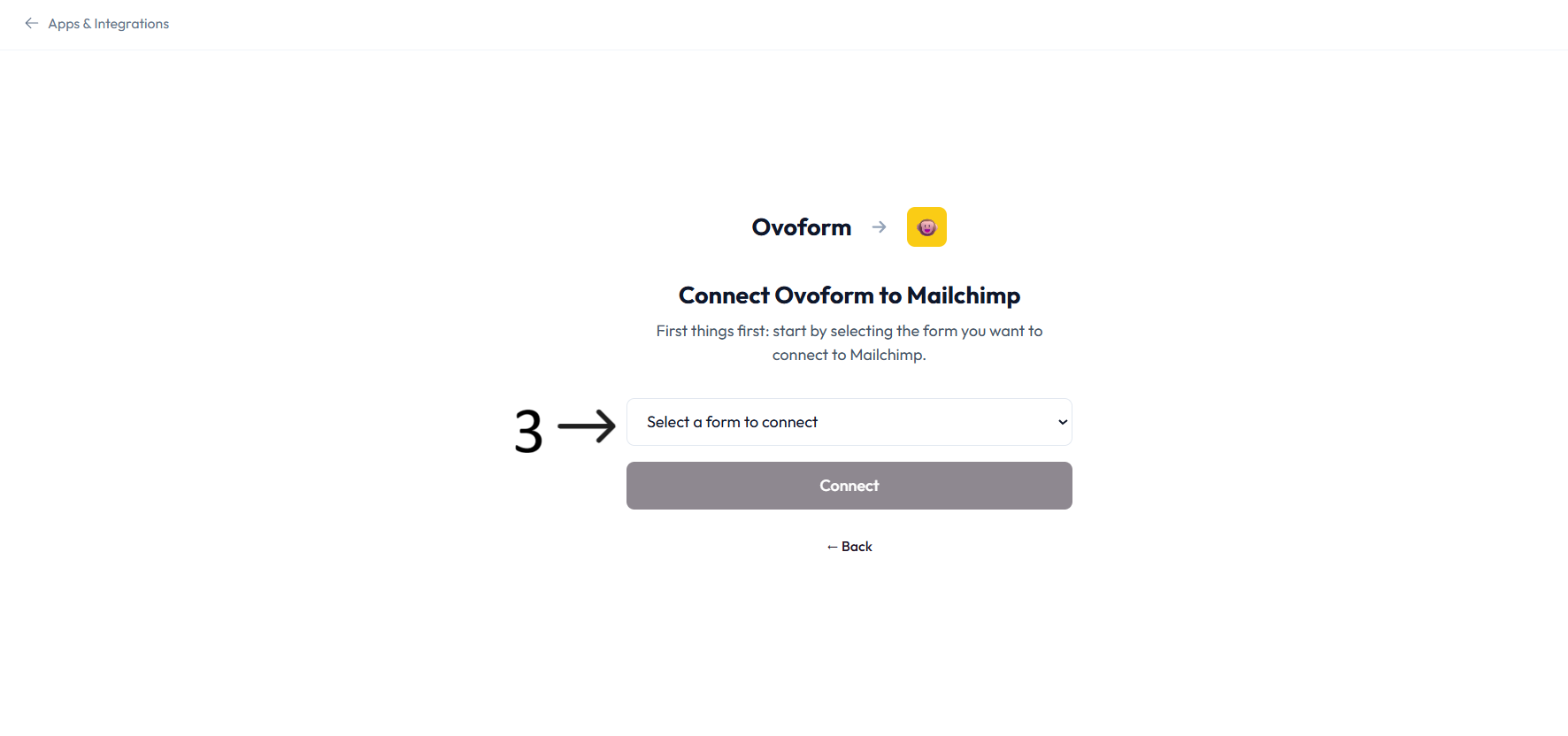
In Connect Ovoform to Mailchimp, select the form you want to connect and click Connect.
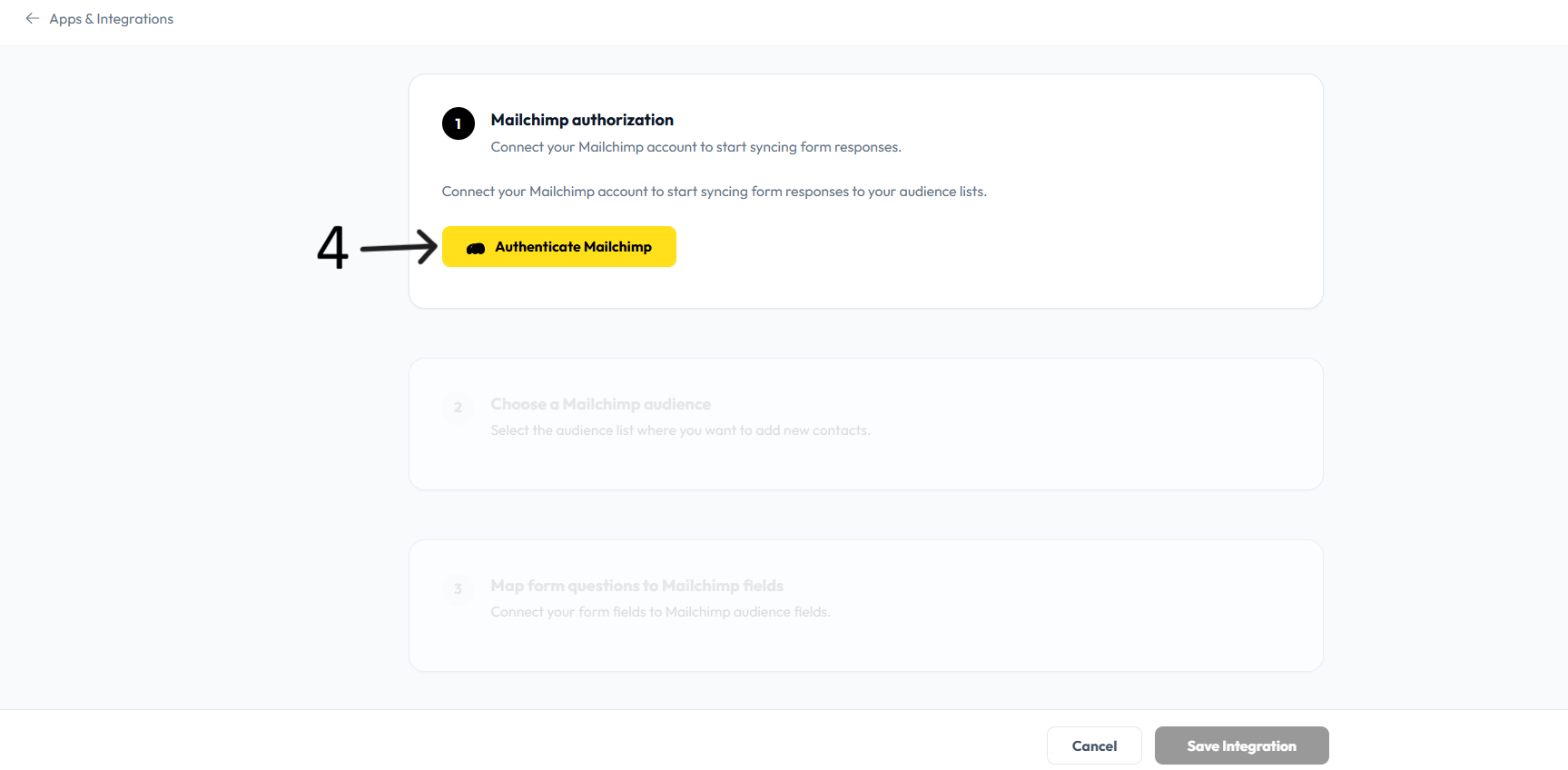
In Mailchimp authorization, click Authenticate Mailchimp and complete the sign-in flow.
Choose the Mailchimp audience where new contacts should be added.
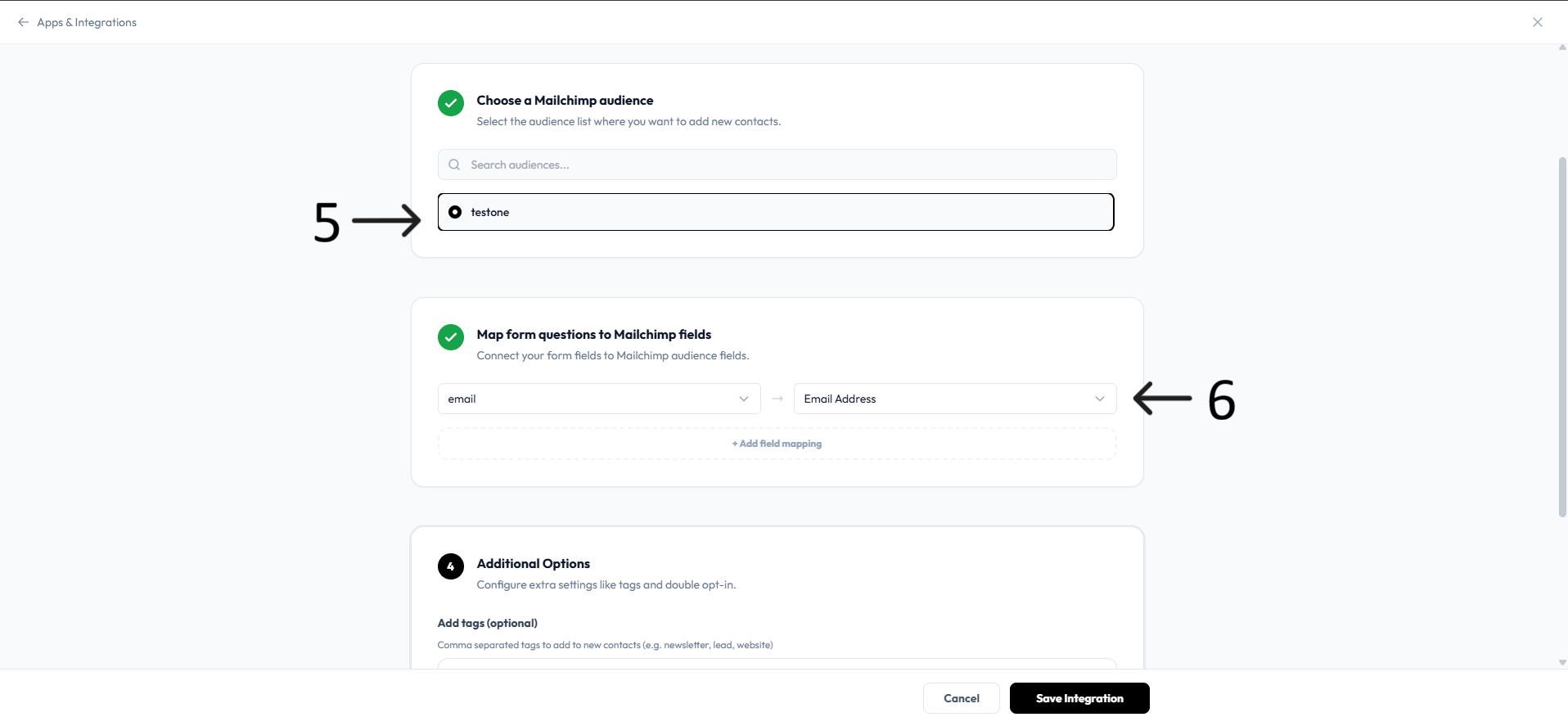
Map your form questions to the correct Mailchimp audience fields. Use Add field mapping when you want to sync more answers.
In Additional Options, add tags and enable or disable Double Opt-in as needed.
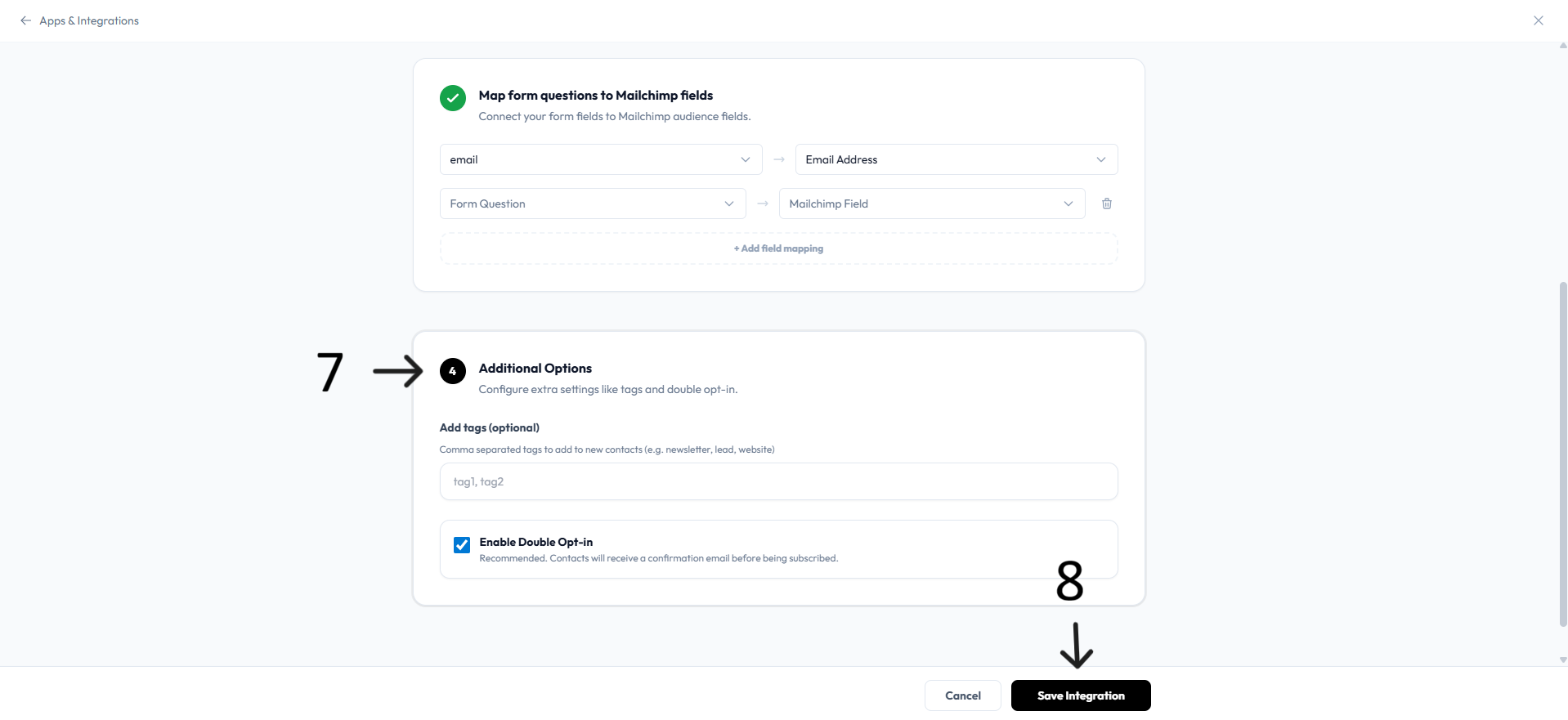
Click Save Integration to finish setup. New form responses will sync to Mailchimp automatically.
What you can do
Sync form submissions to Mailchimp lists.
Map form fields to Mailchimp audience fields.
Enable double opt-in.
Tag subscribers based on responses.
Automate email workflows.
Resources
Help center: available via integration page.
Terms of service: available via integration page.