
File Upload
Use the File Upload question when you need respondents to attach documents, images, resumes, receipts, or other files as part of a form response.
Each File Upload question can use its own per-question configuration, including Google Drive upload settings when you want submitted files stored directly in a connected Drive account.
How to add a File Upload question
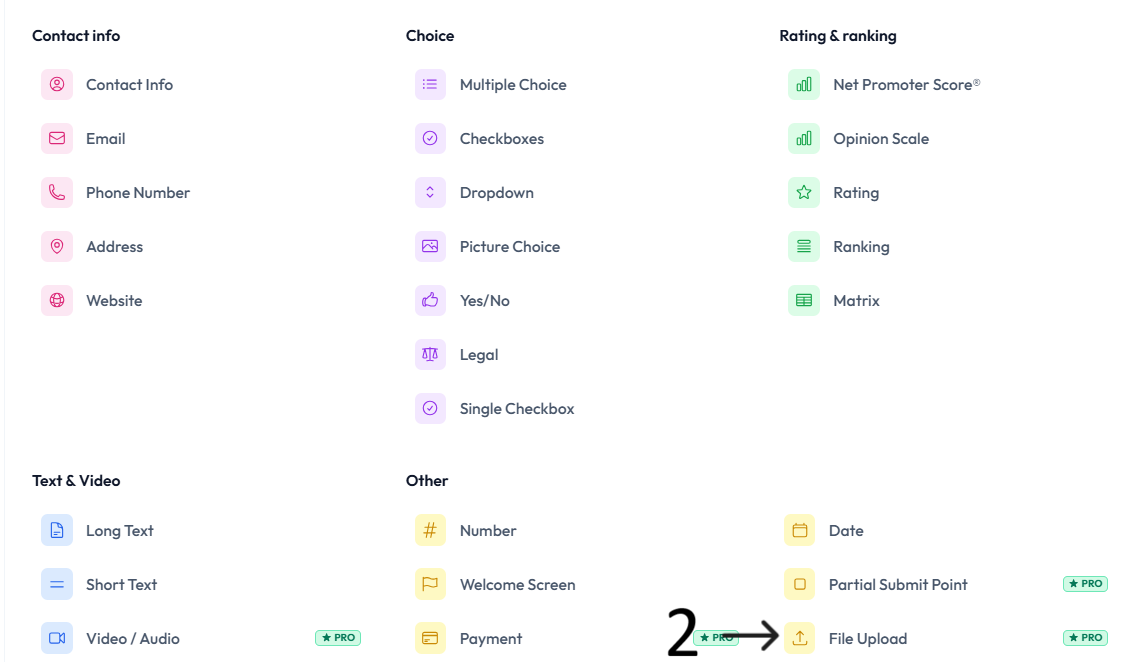
Open the form where you want to collect files and click Add Content.
Select File Upload from the Other section of the question type menu.
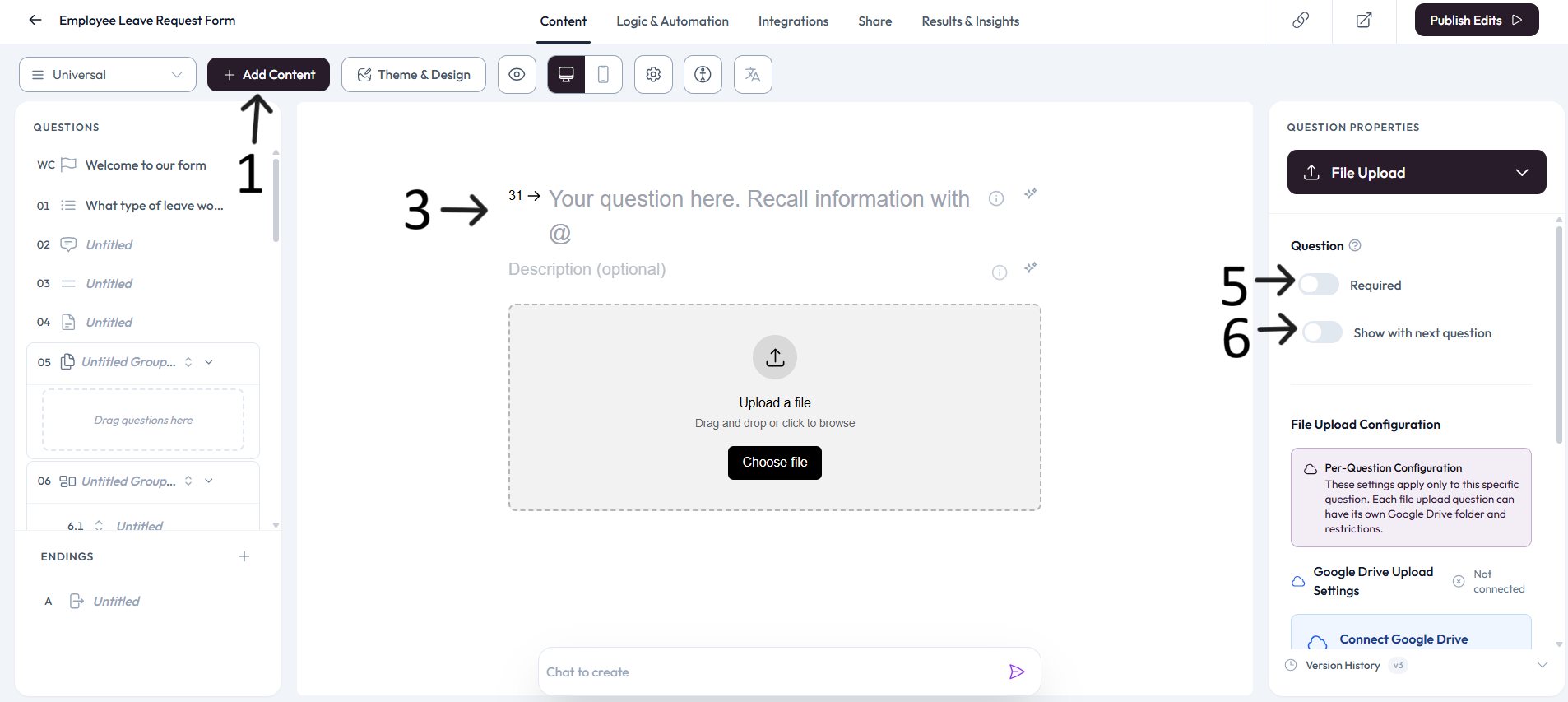
Type your file upload question in the question placeholder and add an optional description.
Respondents can drag and drop a file or click Choose file to browse from their device.
Settings
Use right-side Question settings to mark this question as required when a file is mandatory.
Enable Show with next question when you want the upload field to appear in the same step as the next question.
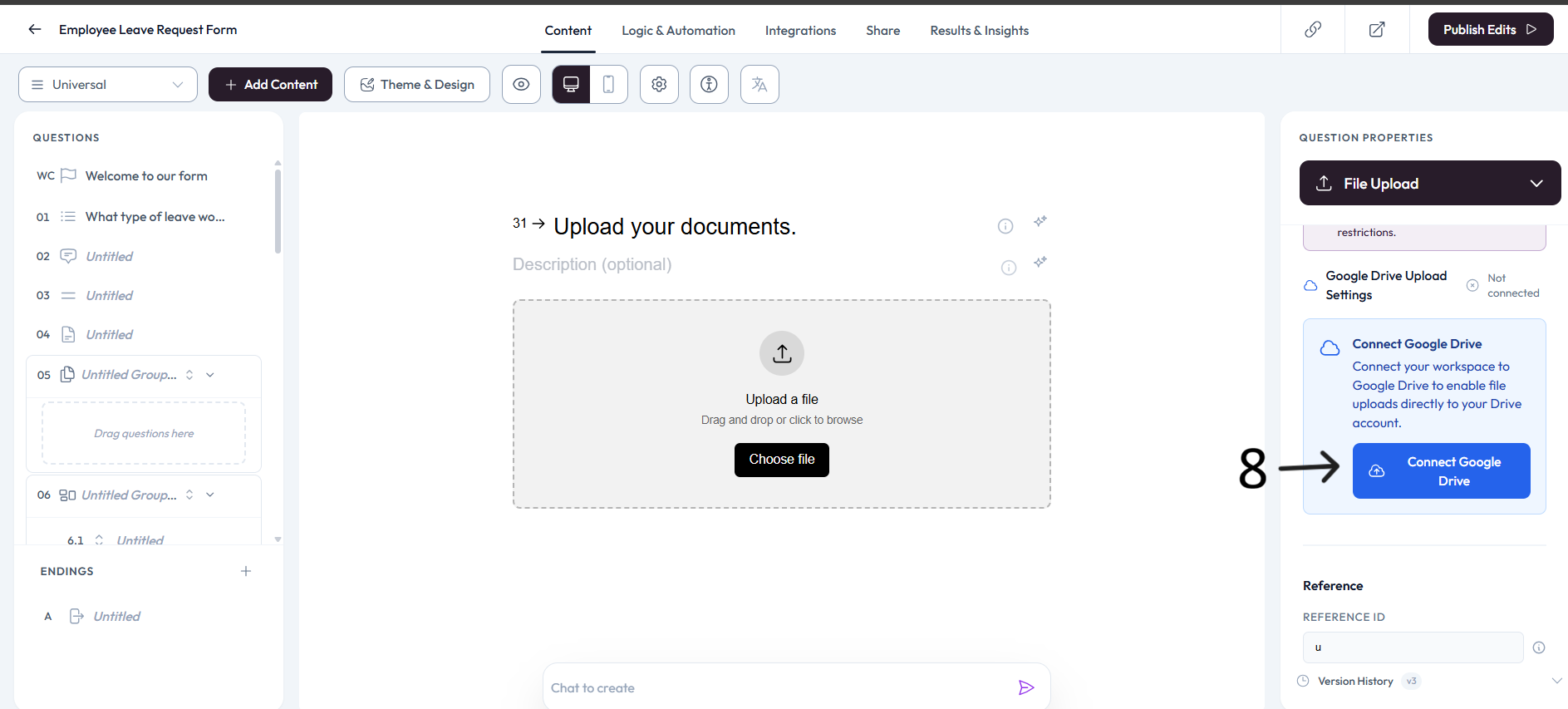
In File Upload Configuration, review the per-question configuration and Google Drive Upload Settings.
Click Connect Google Drive when you want uploaded files saved directly to a connected Google Drive account.
Complete Google Drive Authorization by logging in with Google and granting Ovoform permission to connect to your Drive account.
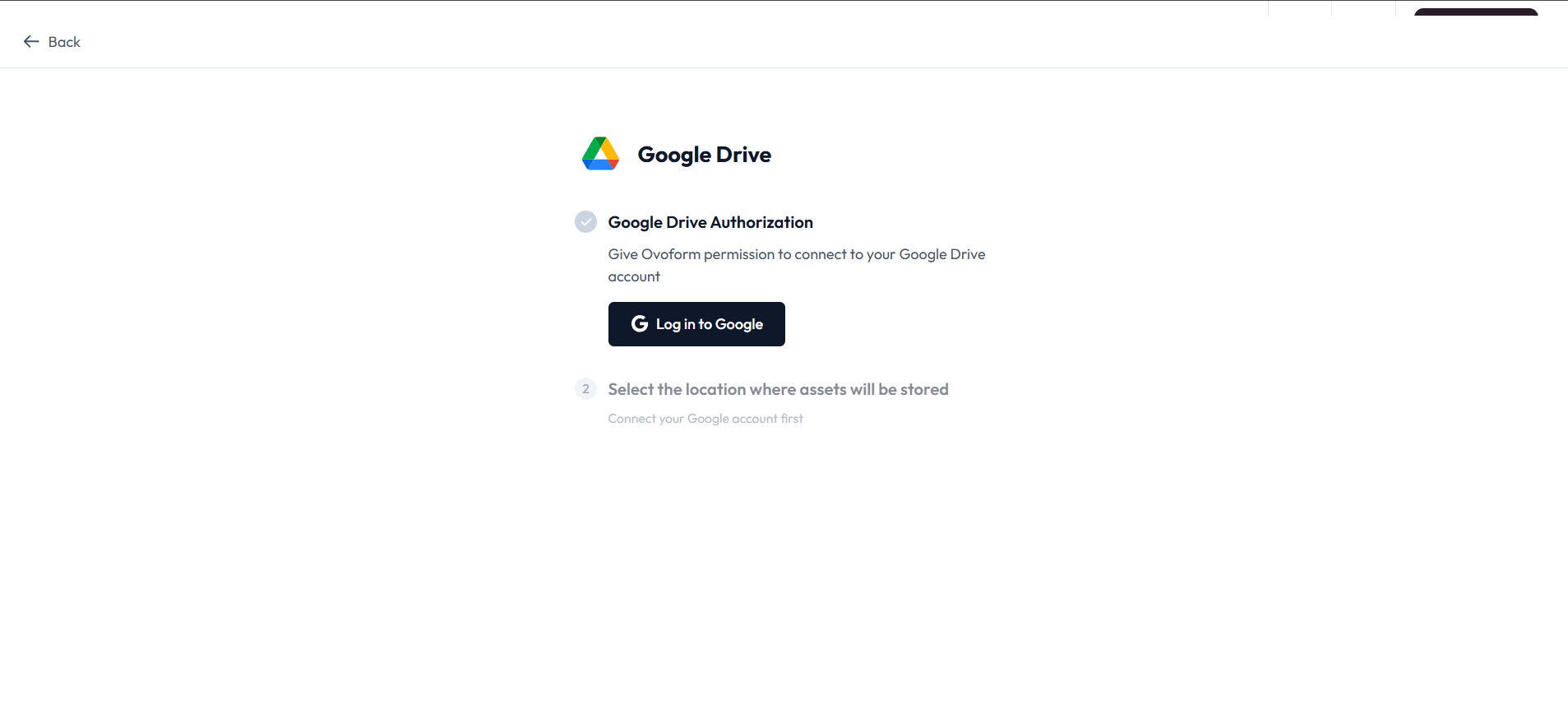
Select the Google Drive location where uploaded assets will be stored.
Best practices
Only request files that are necessary for the form workflow.
Use the description to explain accepted file types or document requirements.
Connect and test Google Drive storage before publishing a form that depends on file uploads.
Submit one test response with a representative file to confirm the upload path and access permissions.