
Picture Choice Question
Picture Choice is a visual version of Multiple Choice. It helps you create striking forms that fit your brand.
How to use Picture Choice questions
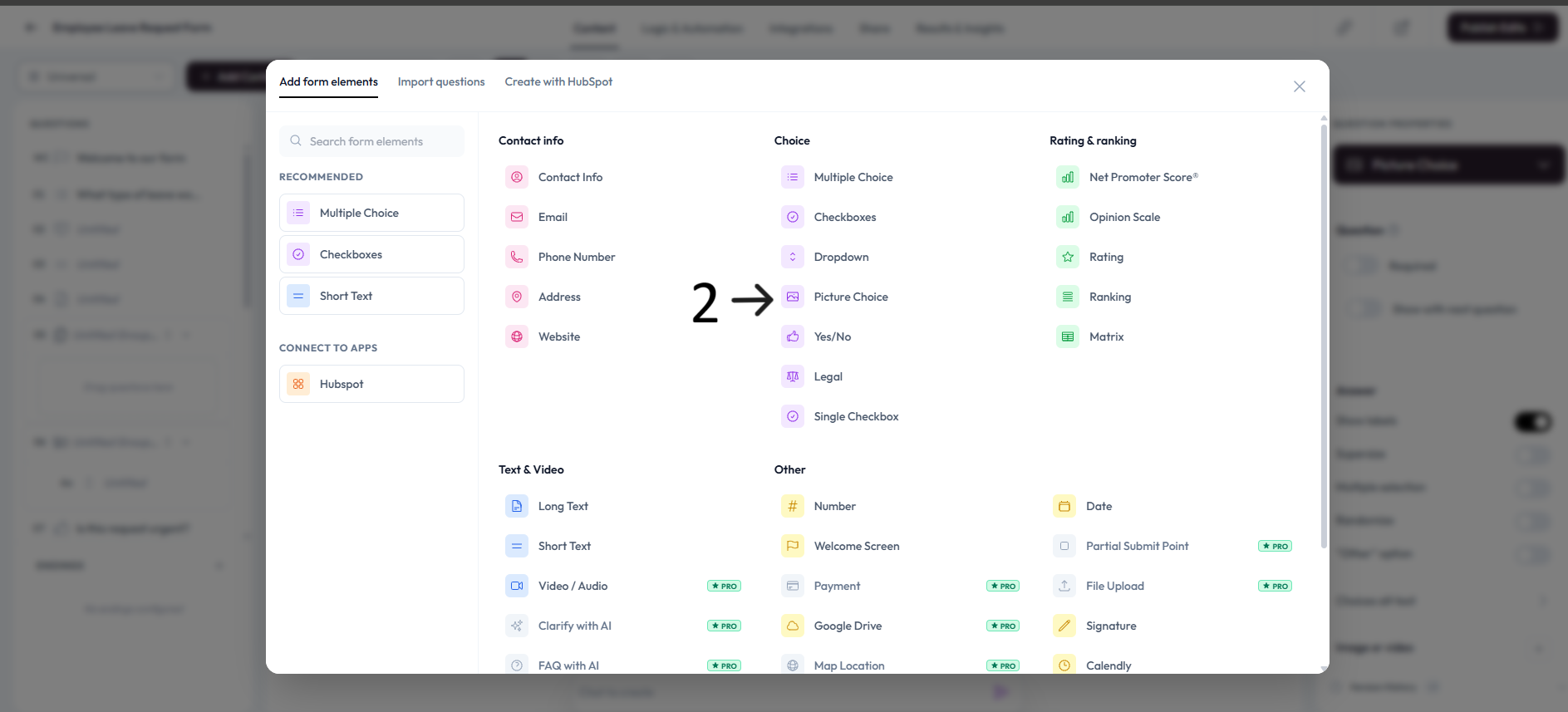
Click Add content to open the question menu.
Select Picture Choice.
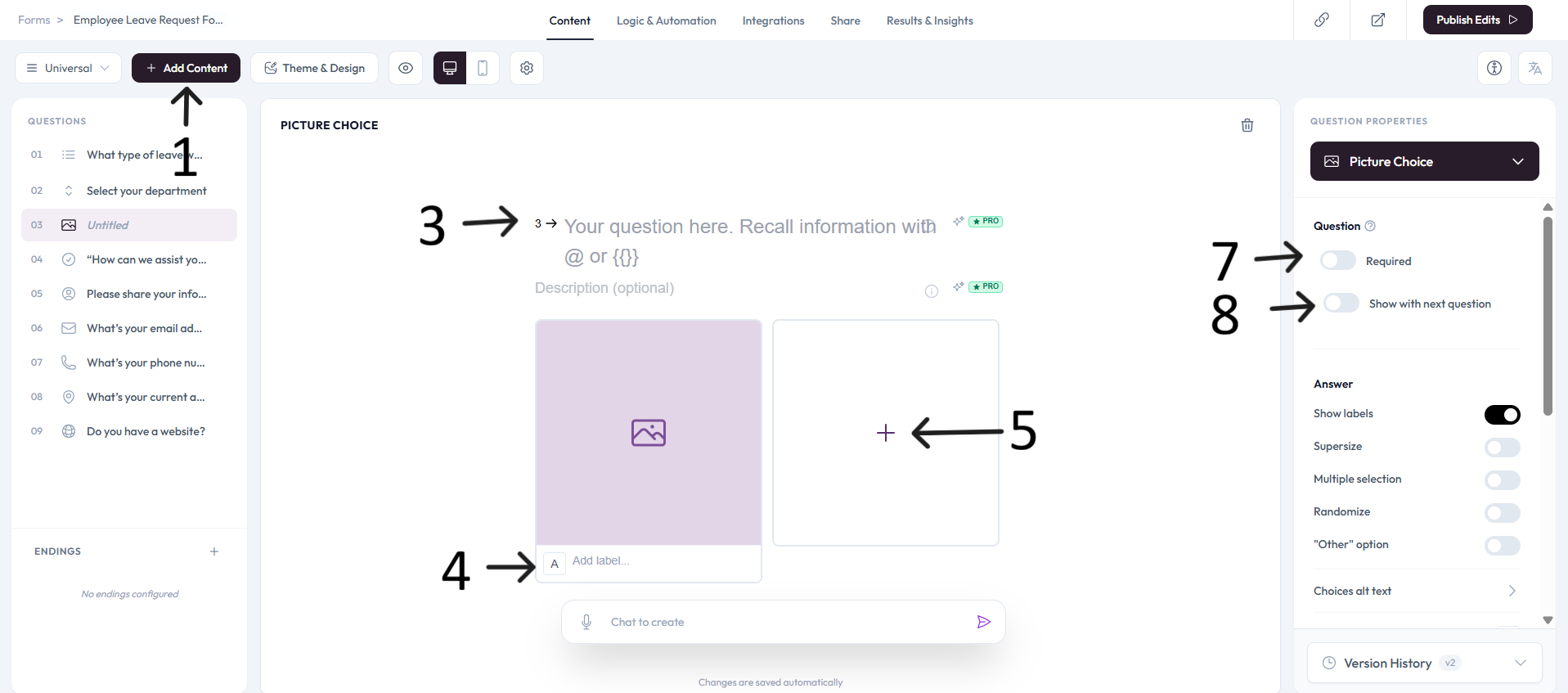
Enter your question text in the placeholder and add an optional description.
Add text labels for each choice by editing the choice text directly.
Click the image icon in each choice to add media.
Use the media tool to search image/icon libraries or upload your own images.
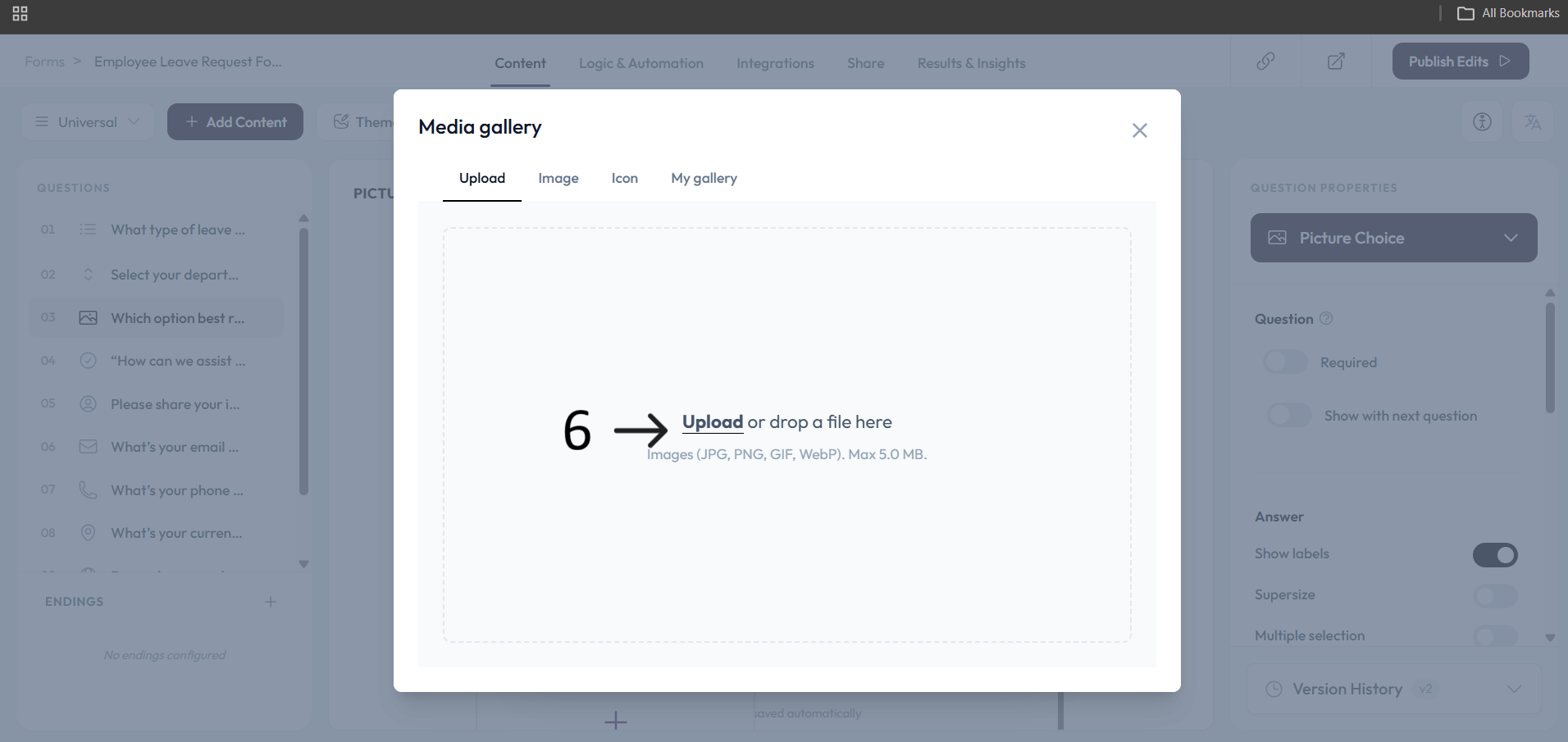
Keep the media gallery open and continue adding images to multiple choices.
Picture Choice settings
Use right-side Question settings to mark this question as required.
Enable Show with next question when you want this question to appear in the same step.
Add an image or video to provide context for this question.