
Google Sheets Integration
What is this integration?Send your OvoForm responses straight to Google Sheets to manage your data in one place and transform it into charts and graphs. Data syncs automatically as responses come in.
If you are running a survey, taking a poll, or collecting feedback, this integration gives your team immediate access to the data so you can act quickly.
Each submission appears in your spreadsheet as soon as a response is completed. You can then use formulas, filters, and conditional formatting to turn raw data into clear insights.
It is also useful for collaboration because teammates can view, edit, and comment directly in Google Sheets.
How to set up
Go to OvoForm dashboard, click Integrations in the sidebar, then open Google Sheets.
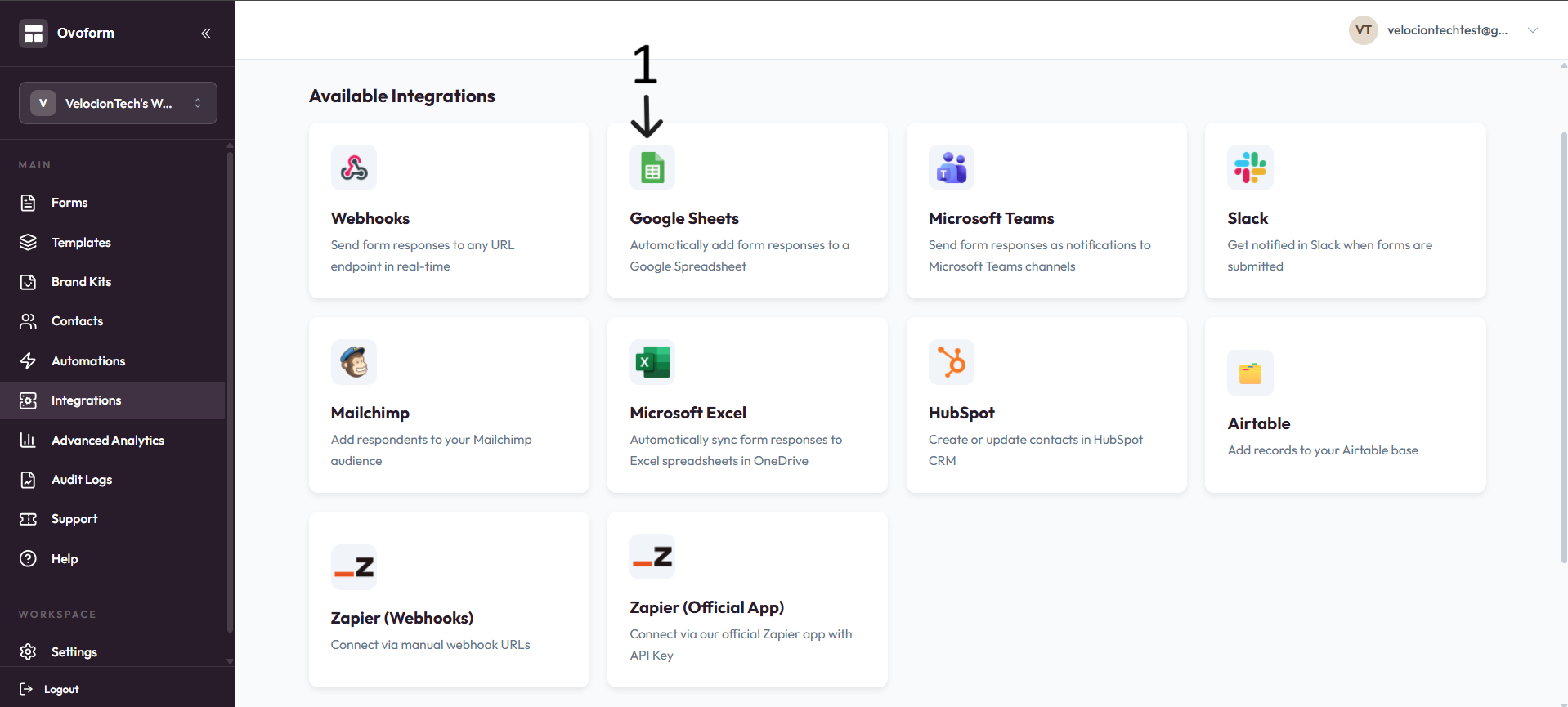
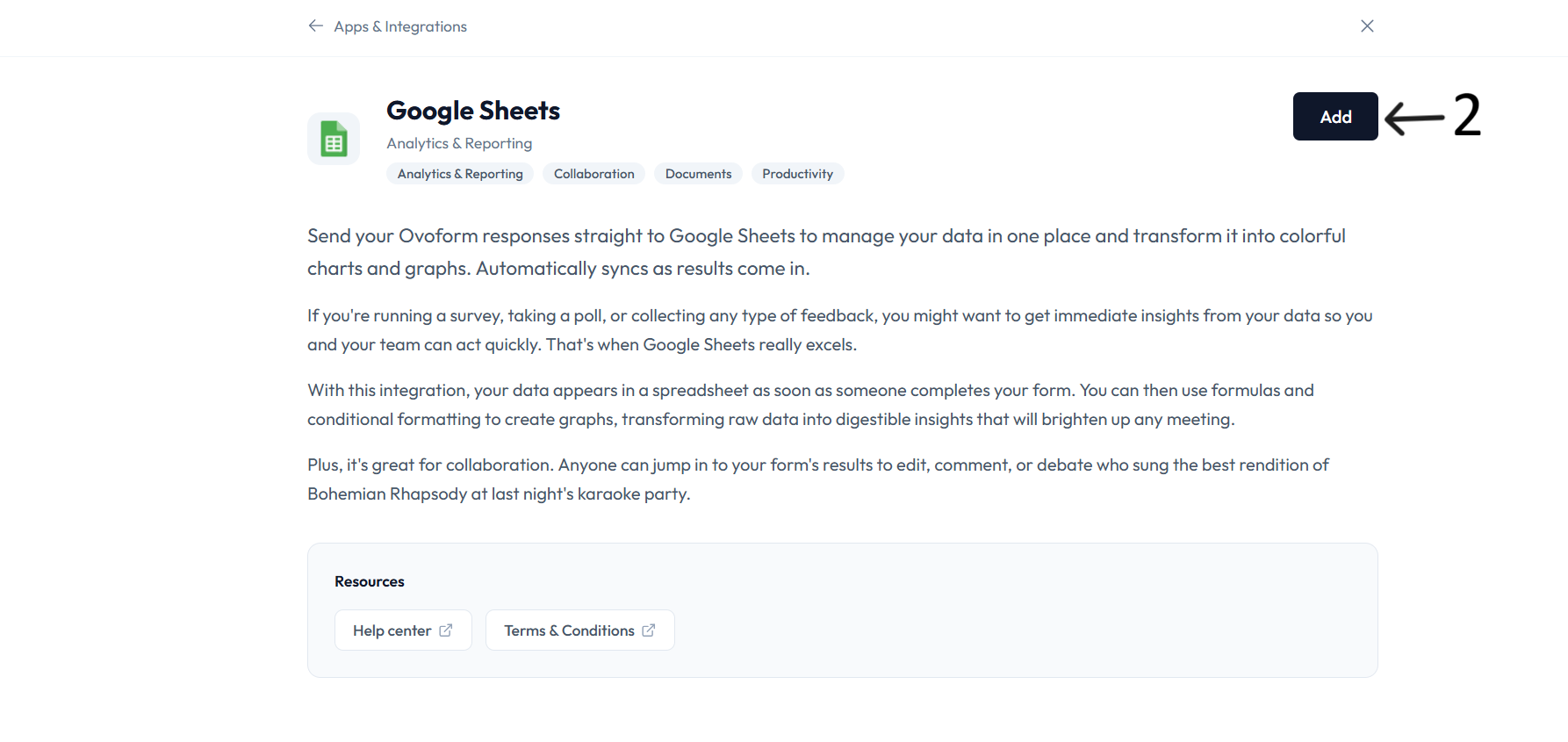
Click Add.
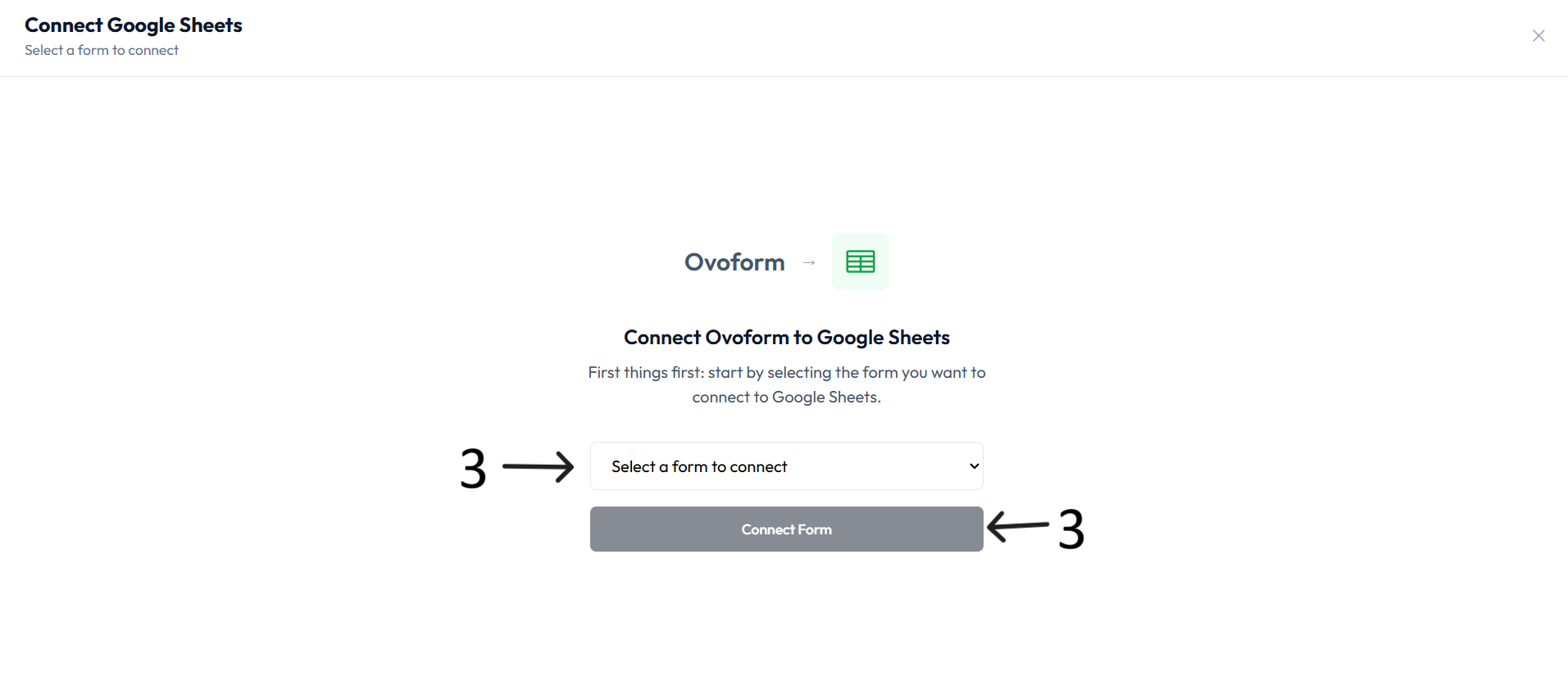
In Connect Ovoform to Google Sheets, select a form and click Connect Form.
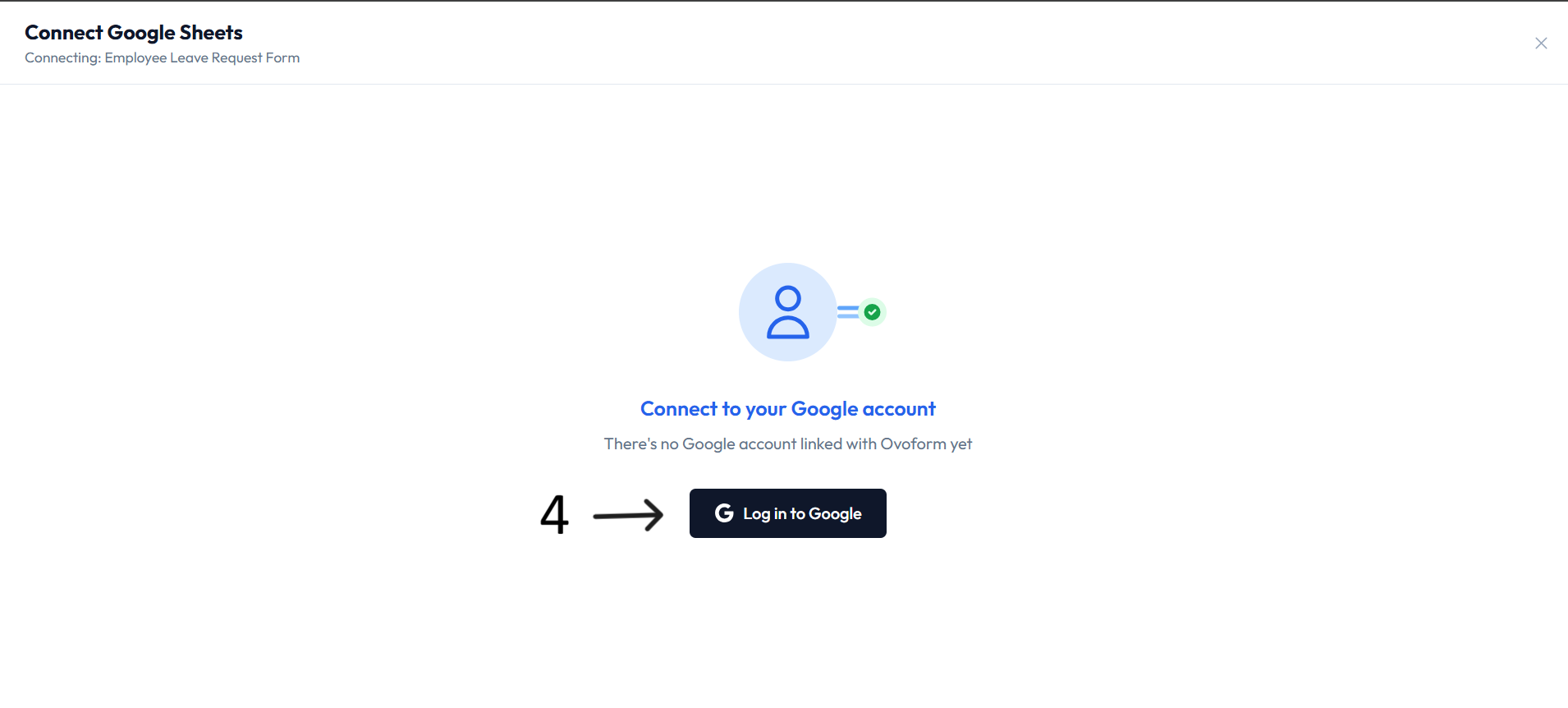
If no Google account is linked, click Log in to Google and complete authorization.
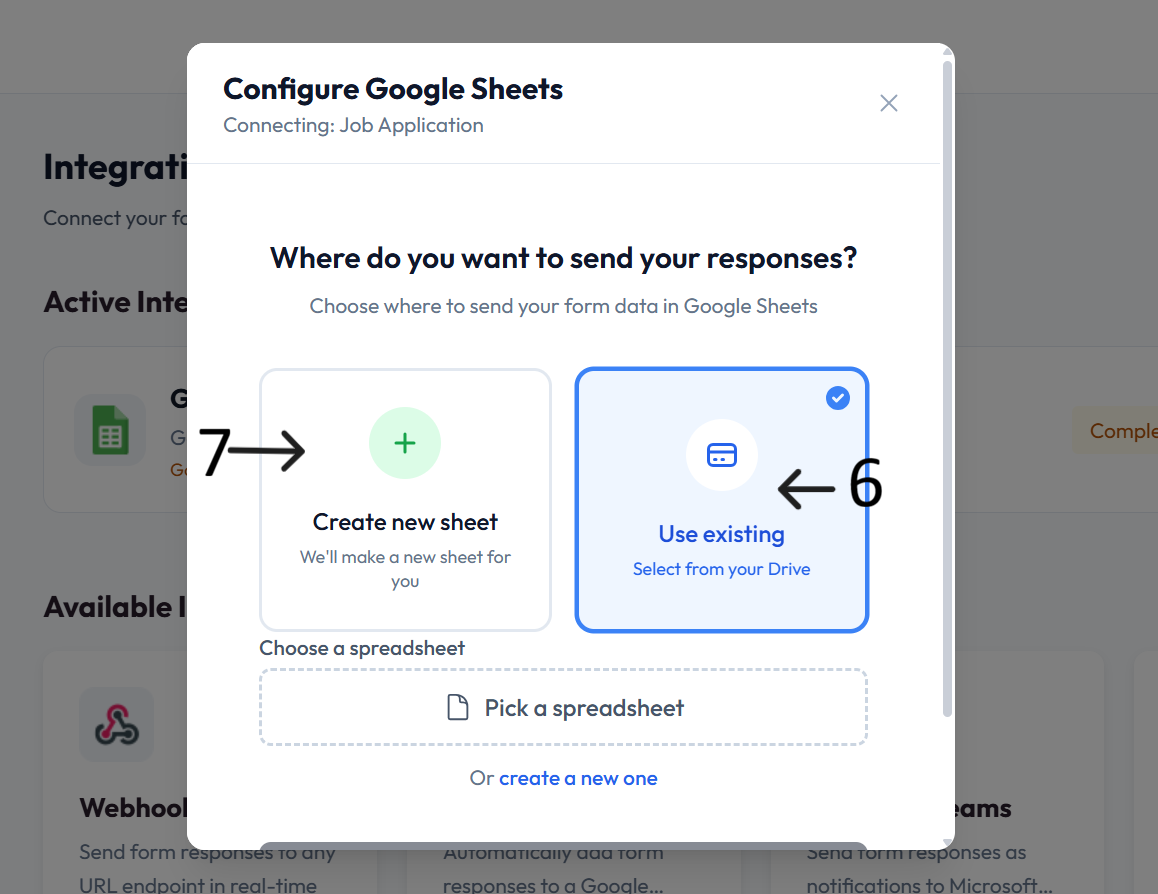
In Configure Google Sheets, choose where to send responses: Use existing or Create new sheet.
If you choose Use existing, click Pick a spreadsheet and select a file from Google Drive.
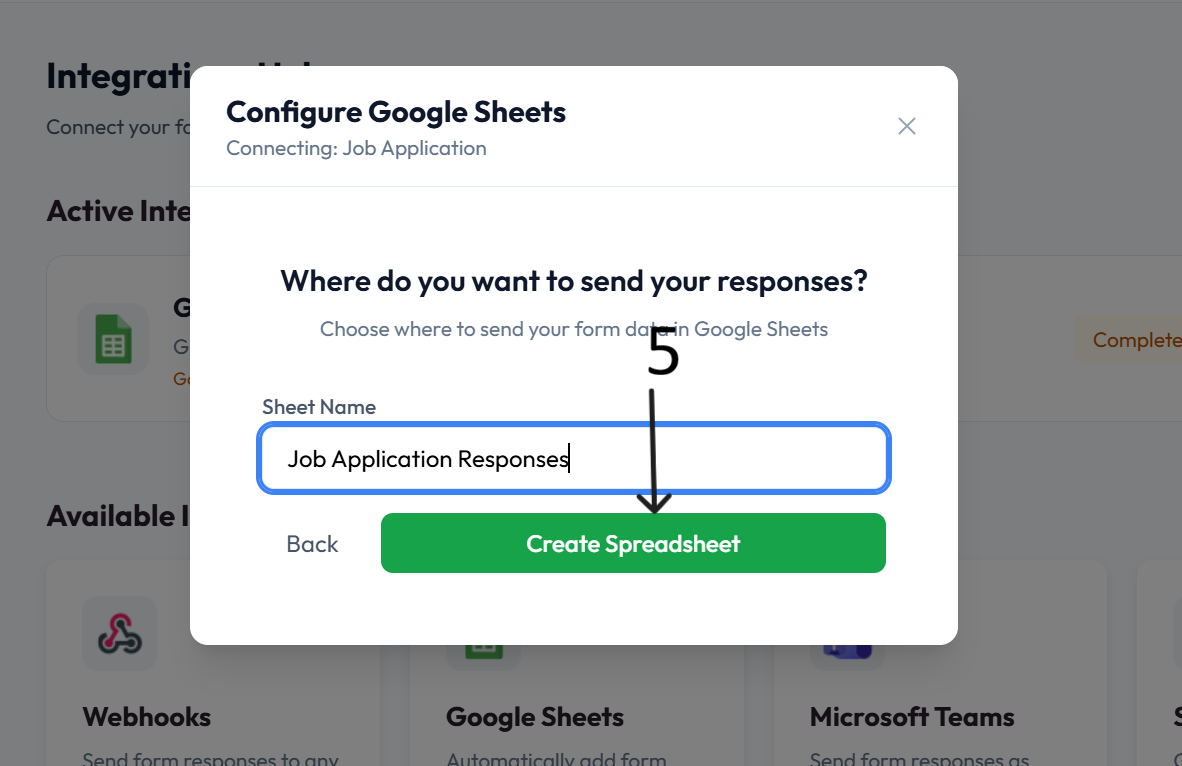
If you choose Create new sheet, enter a sheet name and click Create Spreadsheet.
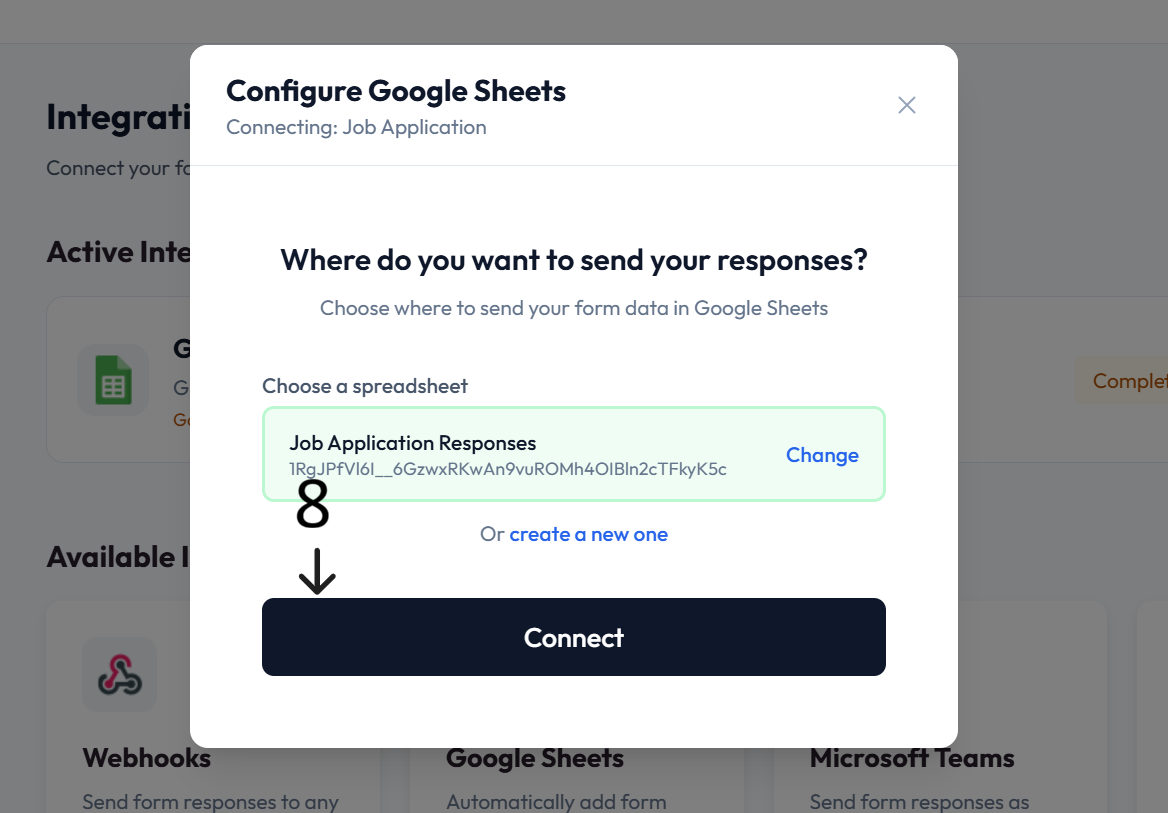
Click Connect.
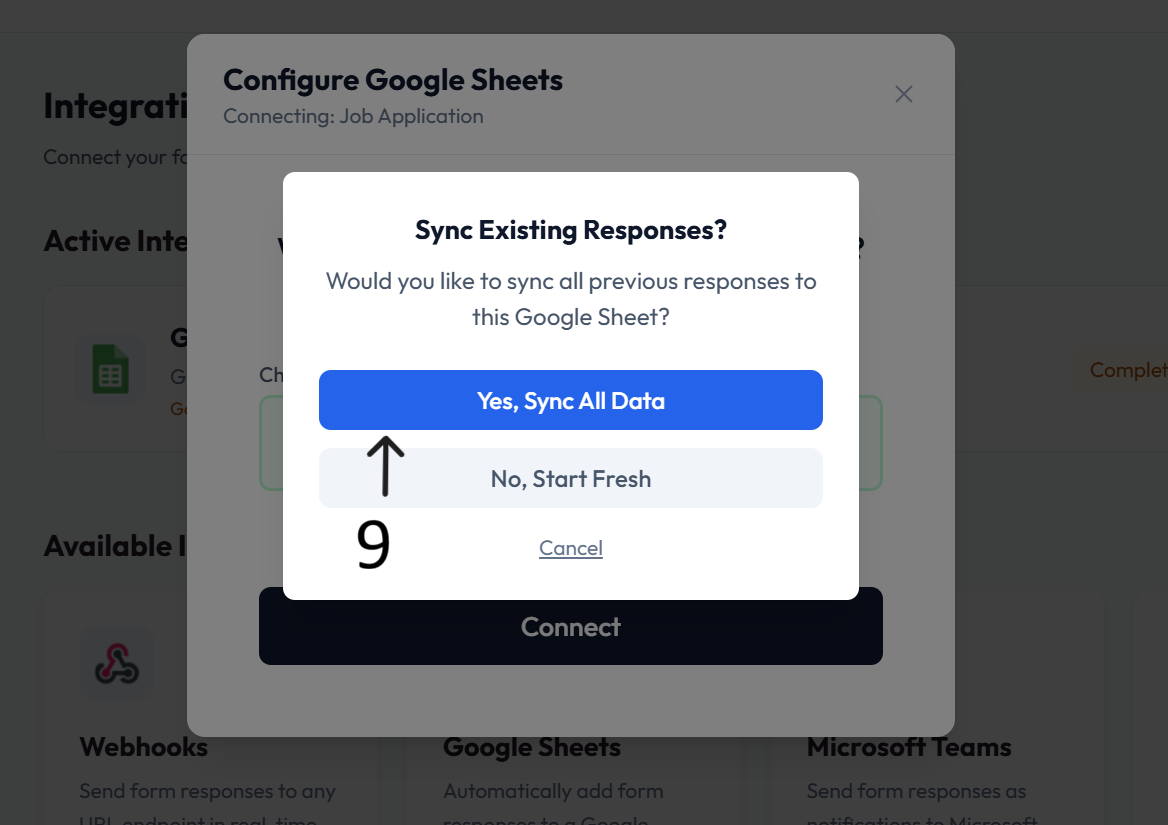
When Sync Existing Responses appears, choose Yes, Sync All Data or No, Start Fresh.
After setup completes, new form responses sync automatically to Google Sheets.
Resources
Help center: available via the integration page.
Terms & Conditions: available via the integration page.