
Map Location
Use the Map Location question when you want respondents to select, confirm, or review a geographic location directly on a map.
You can set the default location respondents will see, control the initial zoom level, and optionally enable an address search bar.
How to add a Map Location question
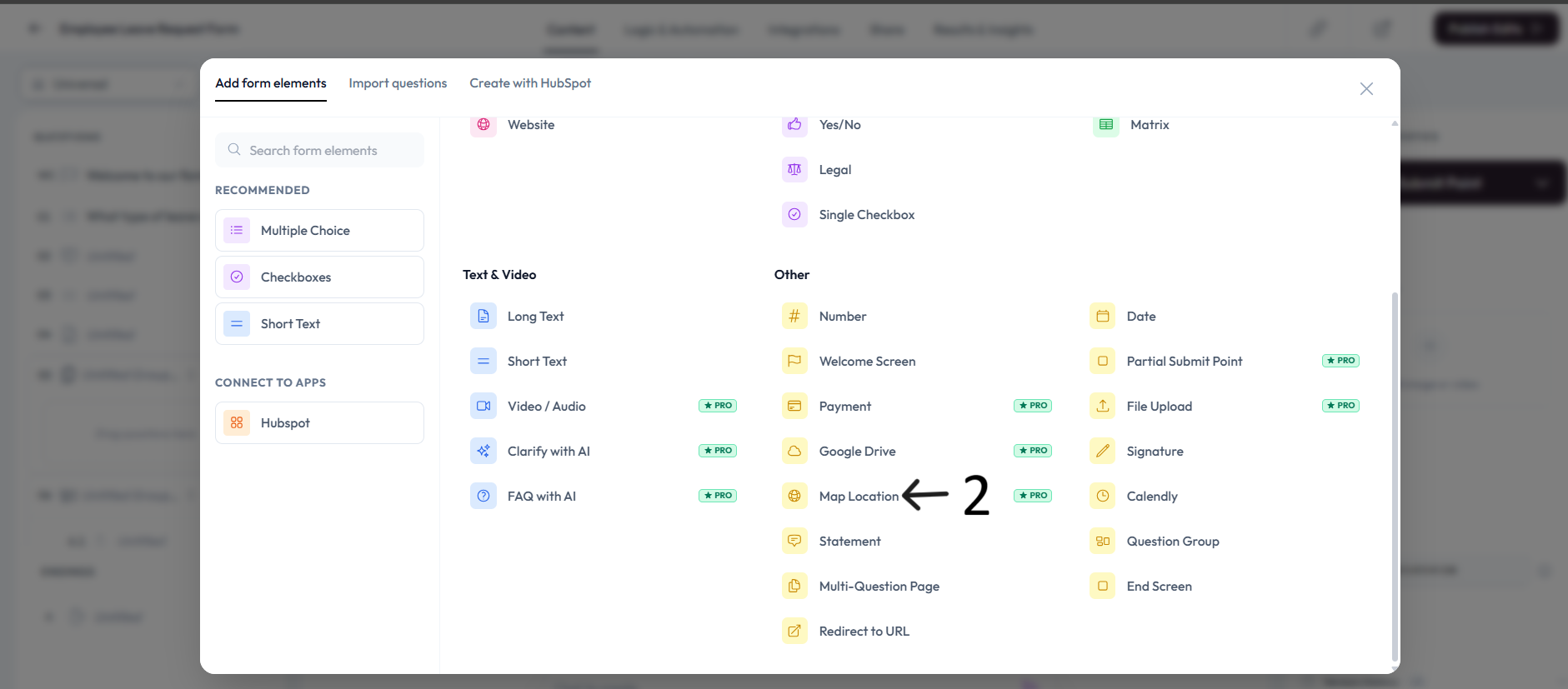
Open the form where you want to collect a location and click Add Content.
Select Map Location from the Other section of the question type menu.
Type your map location question in the question placeholder and add an optional description.
Click the map to set the default location respondents will see.
Adjust Zoom to control how close the map appears when respondents open the question.
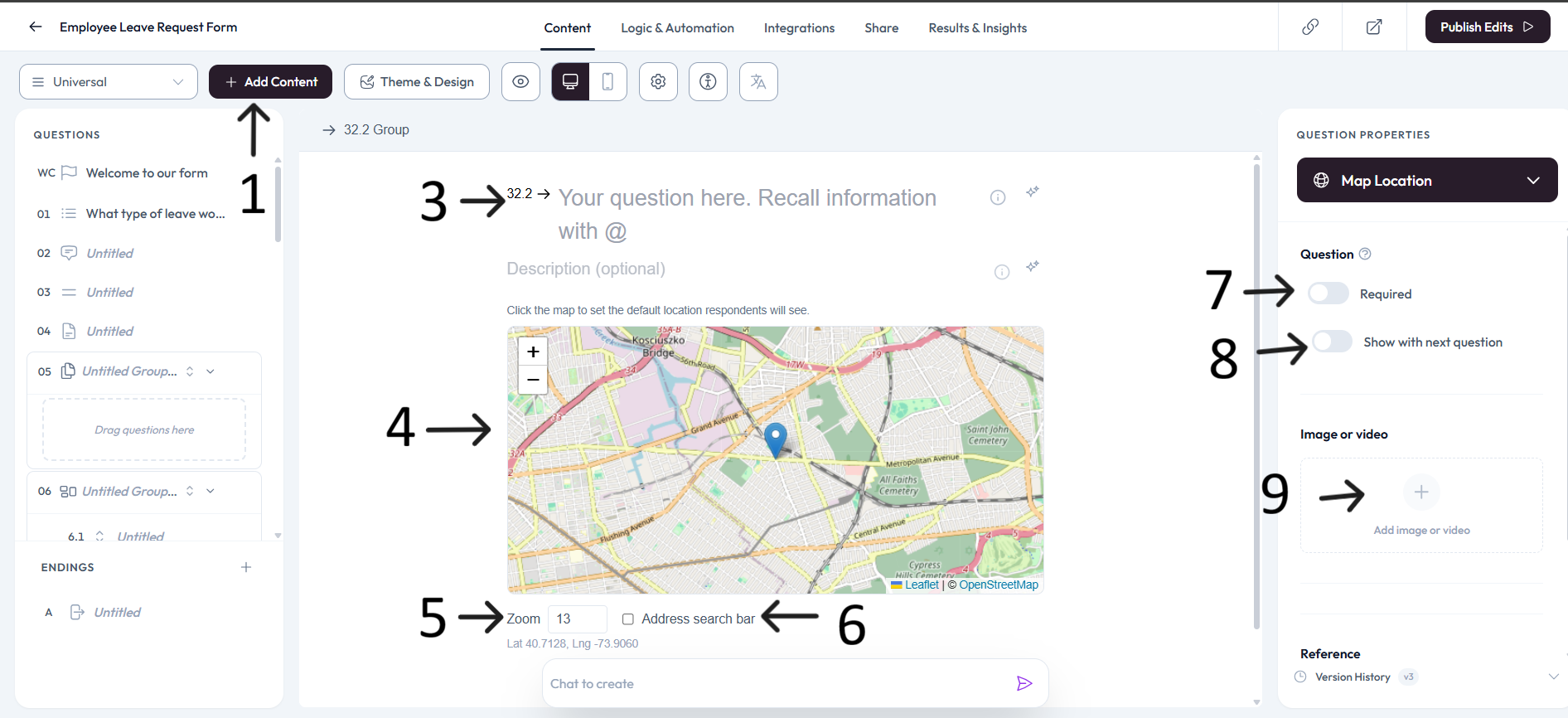
Enable Address search bar when you want respondents to search for an address instead of only moving the map pin.
Settings
Use right-side Question settings to mark this question as required when a location is mandatory.
Enable Show with next question when you want this map question to appear in the same step as the next question.
Use Image or video when you want to add visual context to the map question.
Review the Reference ID in the right-side panel when you need to identify this question in analytics, exports, or workflows.
Best practices
Set a sensible default location before publishing so respondents start from the right area.
Enable address search when respondents may need to find a specific street address quickly.
Only collect precise location data when it is necessary for the form workflow.
Submit one test response to confirm the saved latitude and longitude match the selected point.