
Microsoft Teams Integration
What is this integration?Send your Ovoform responses straight to Microsoft Teams channels to keep your team in the loop with instant notifications.
Automatically sync responses as they come in so teams can react quickly without leaving Microsoft Teams.
You can choose the exact team, channel, and question fields that should be shared in notifications.
How to set up
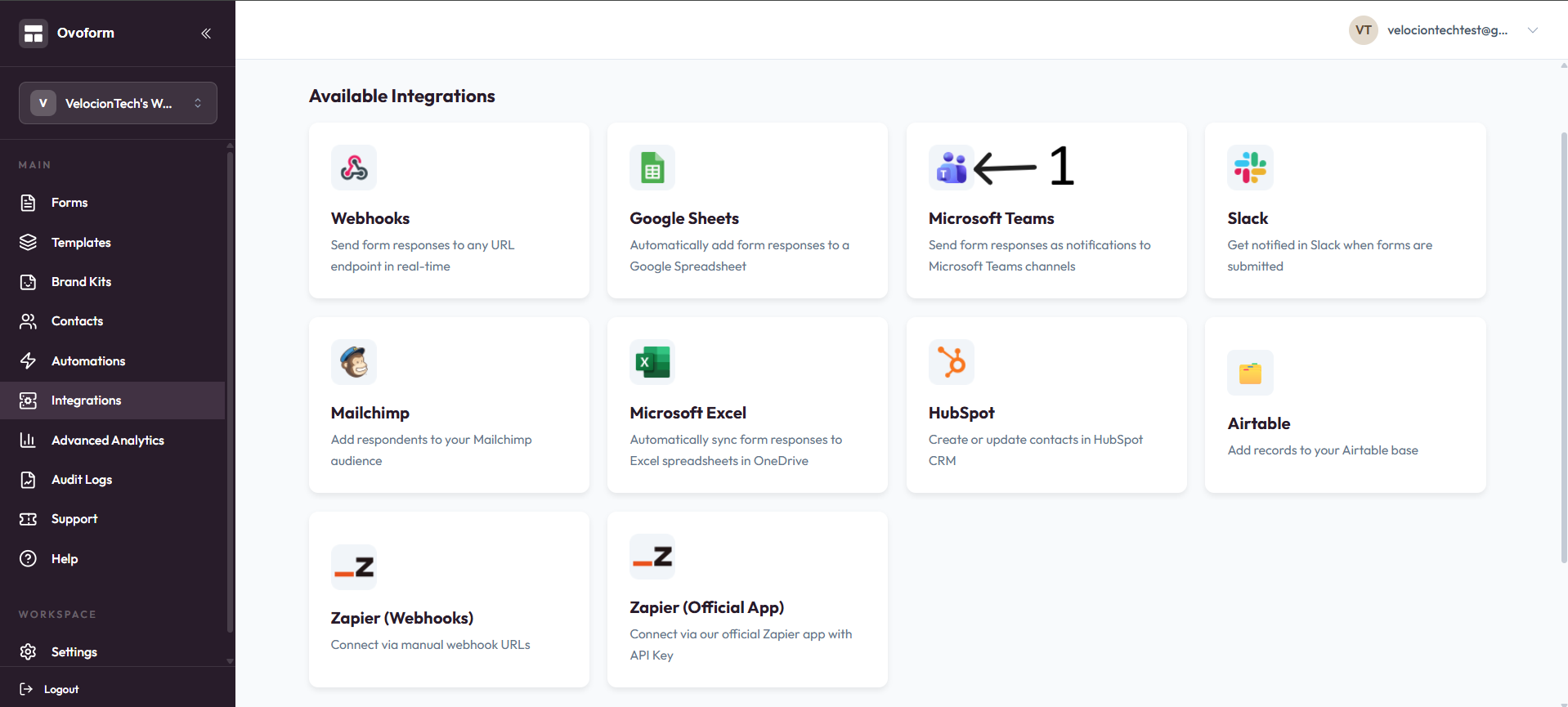
Go to OvoForm dashboard, click Integrations in the sidebar, then open Microsoft Teams.
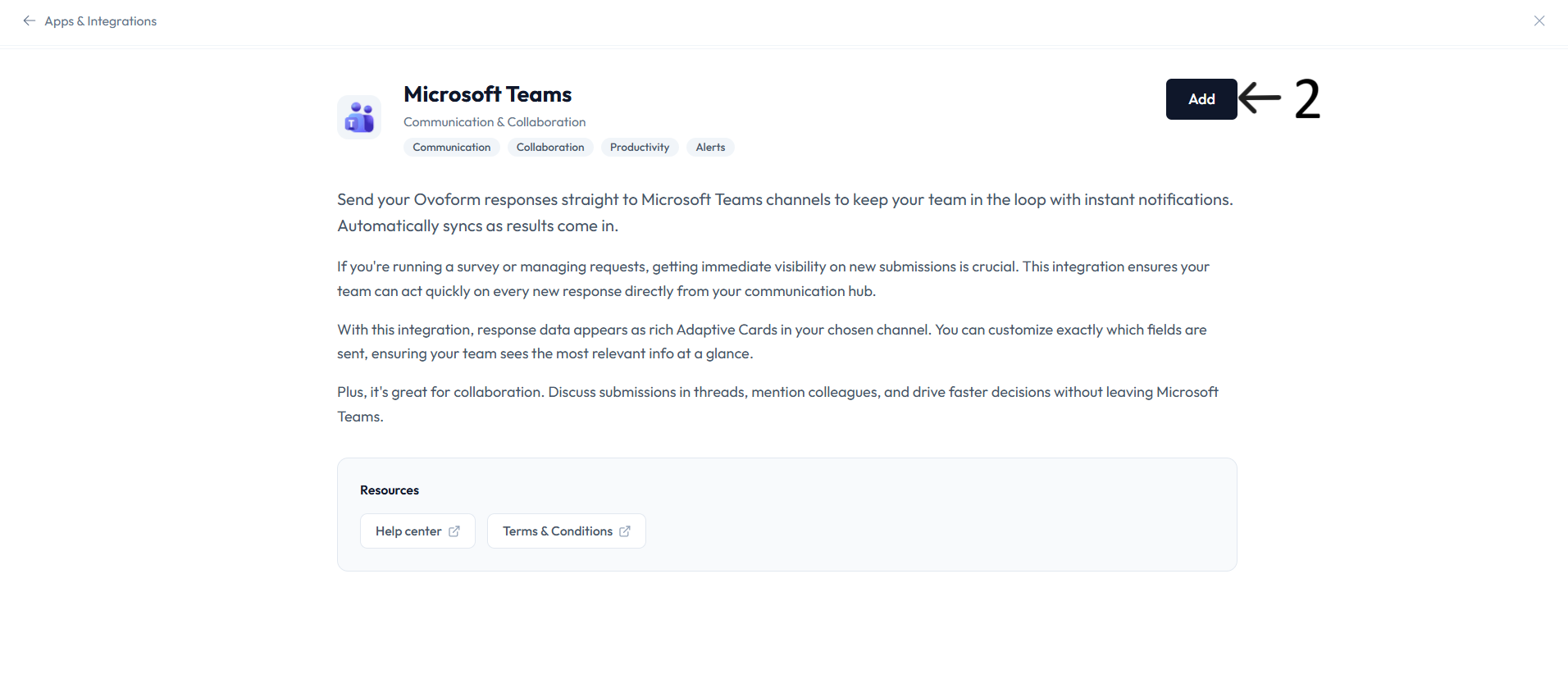
Click Add.
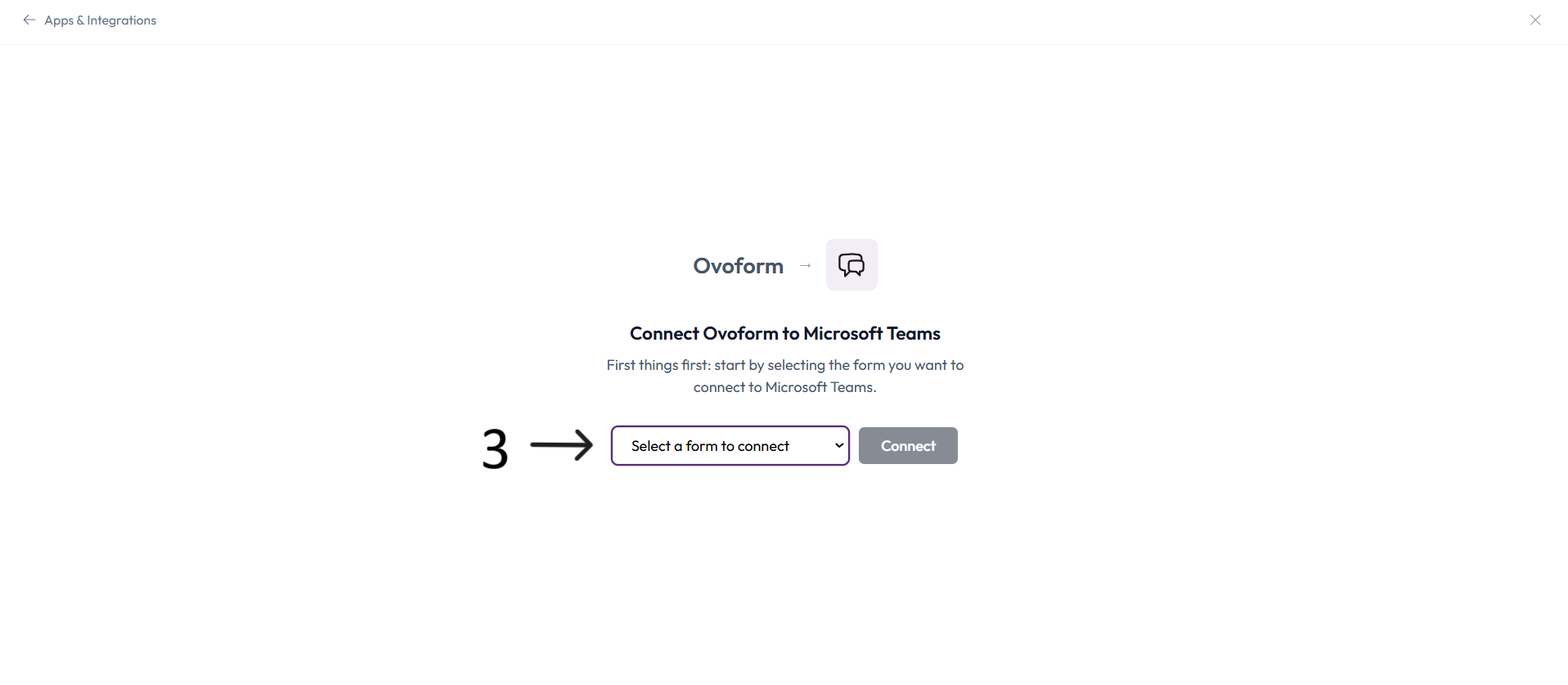
In Connect Ovoform to Microsoft Teams, select a form and click Connect.
In Microsoft Authorization, click Authenticate and complete Microsoft sign-in.
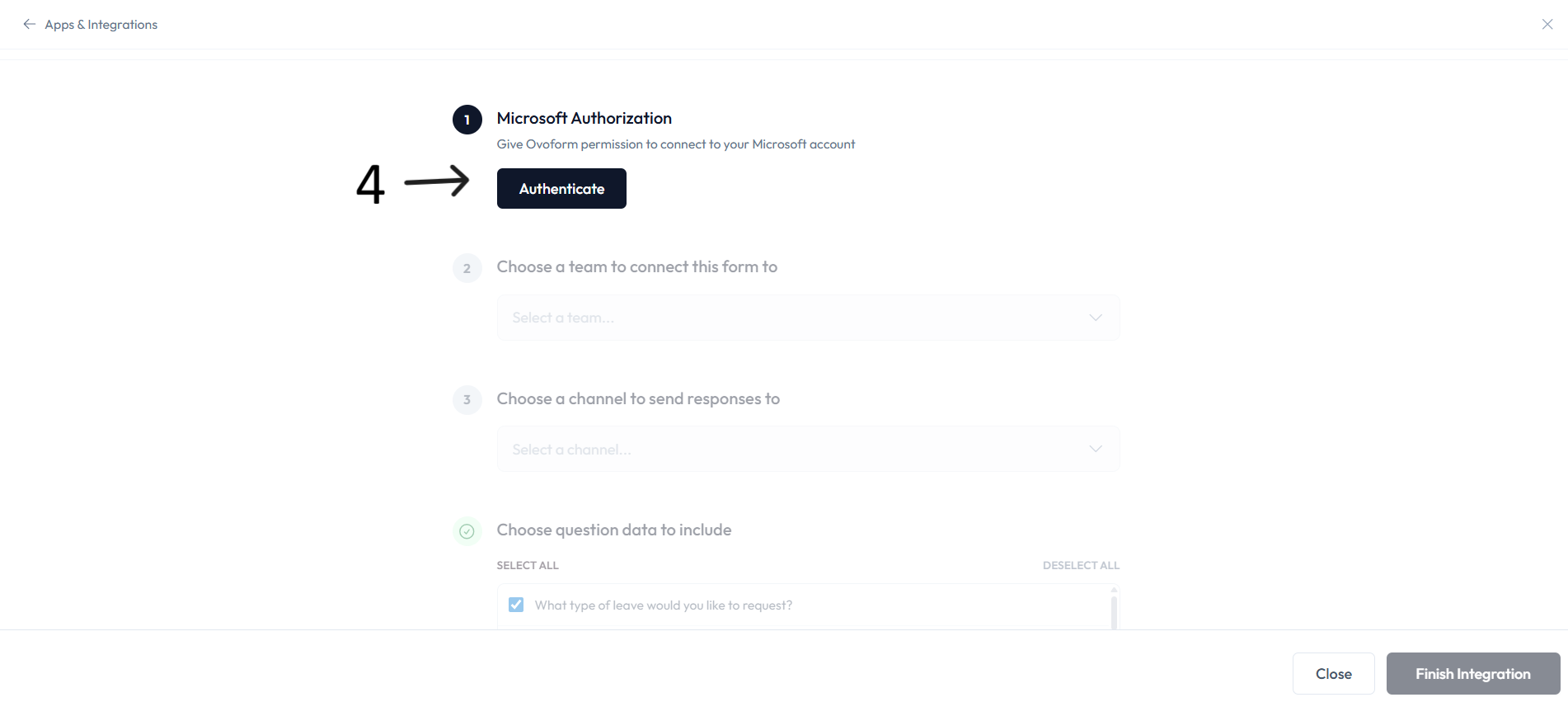
After authorization shows connected, choose a team to connect this form to.
Choose the channel where responses should be posted.
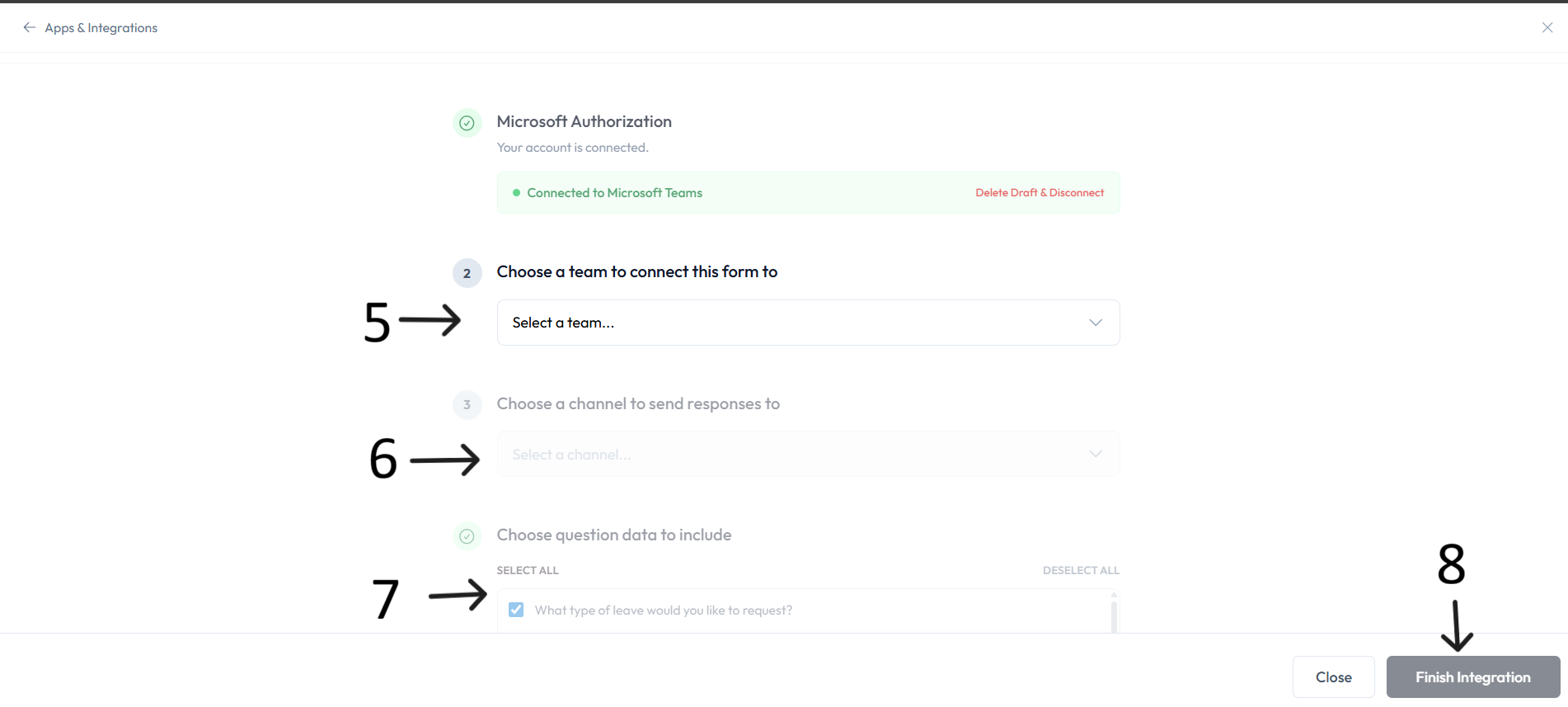
In Choose question data to include, select or deselect the fields you want in Teams notifications.
Click Finish Integration.
New form responses now appear in the selected Microsoft Teams channel.