
Microsoft Excel Integration
What is this integration?Automatically sync your OvoForm responses directly to Microsoft Excel workbooks in your OneDrive. Keep your data organized and ready for analysis without manual exports.
Each new form submission is added as a new row in your selected workbook, making it easy to track leads, feedback, or registrations in real time.
You can choose an existing workbook or create a new one, and also sync past responses so your spreadsheet contains all collected data.
How to set up
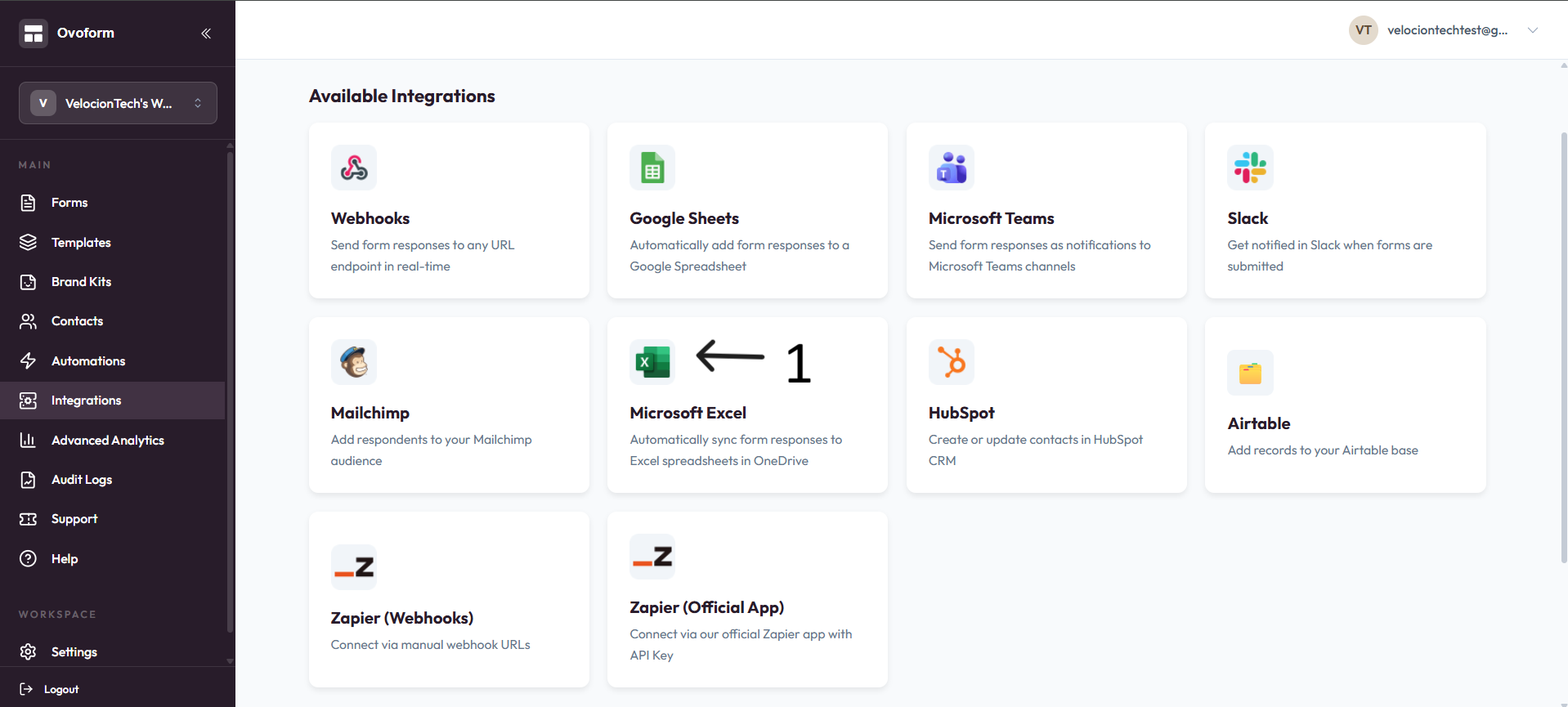
Go to OvoForm dashboard, click Integrations in the sidebar, then open Microsoft Excel.
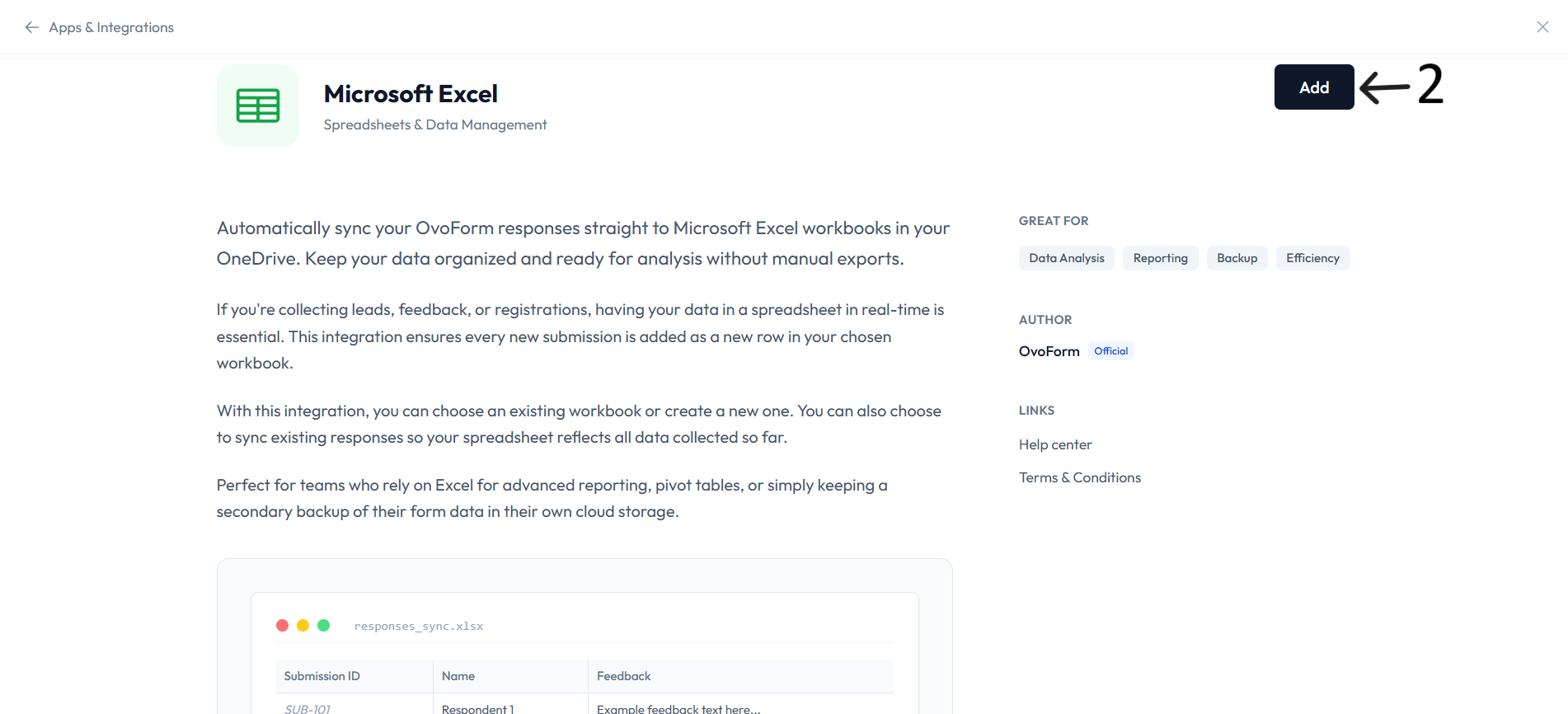
Click Add.
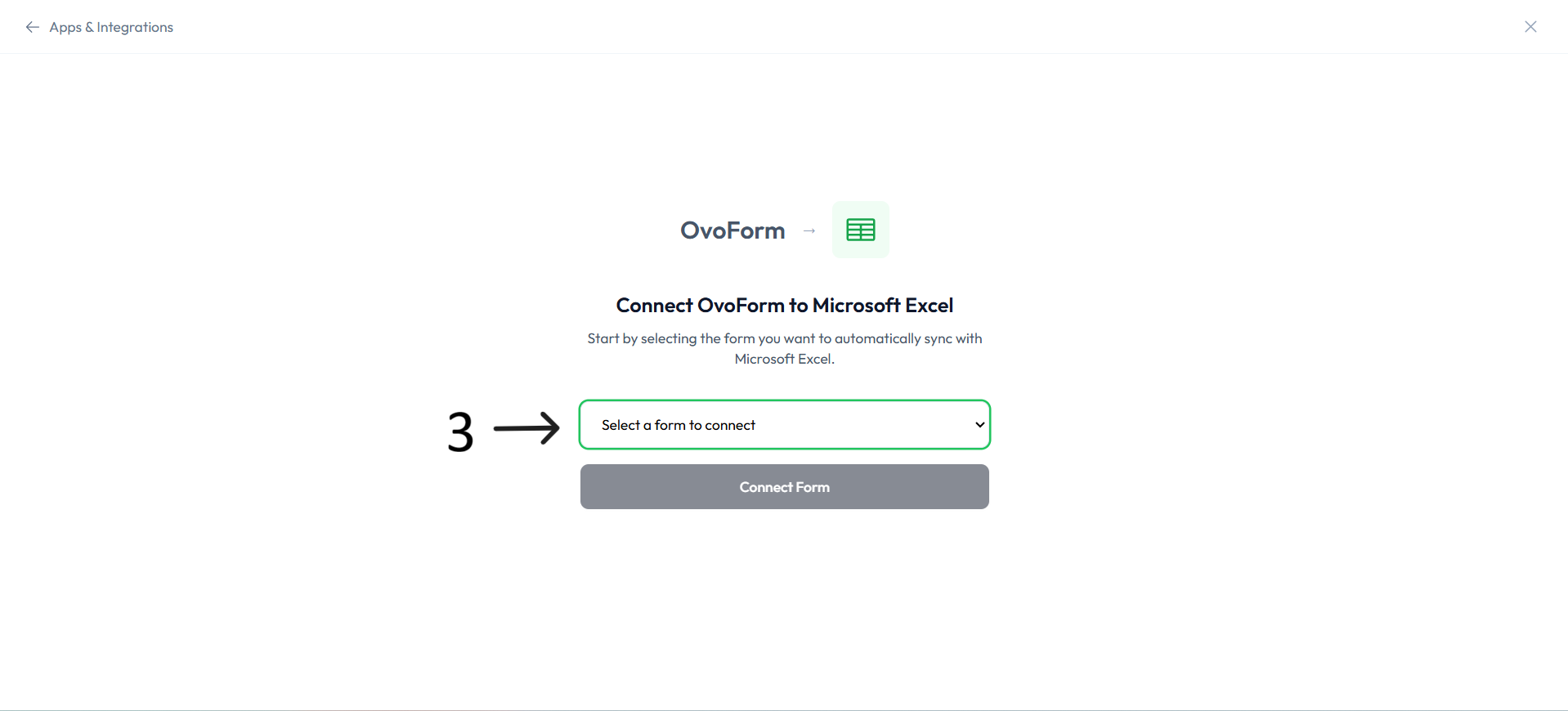
In Connect OvoForm to Microsoft Excel, select a form and click Connect Form.
In Connect Microsoft Account, click Connect Microsoft and complete Microsoft authorization.
After authorization, confirm Account Protected & Connected is shown.
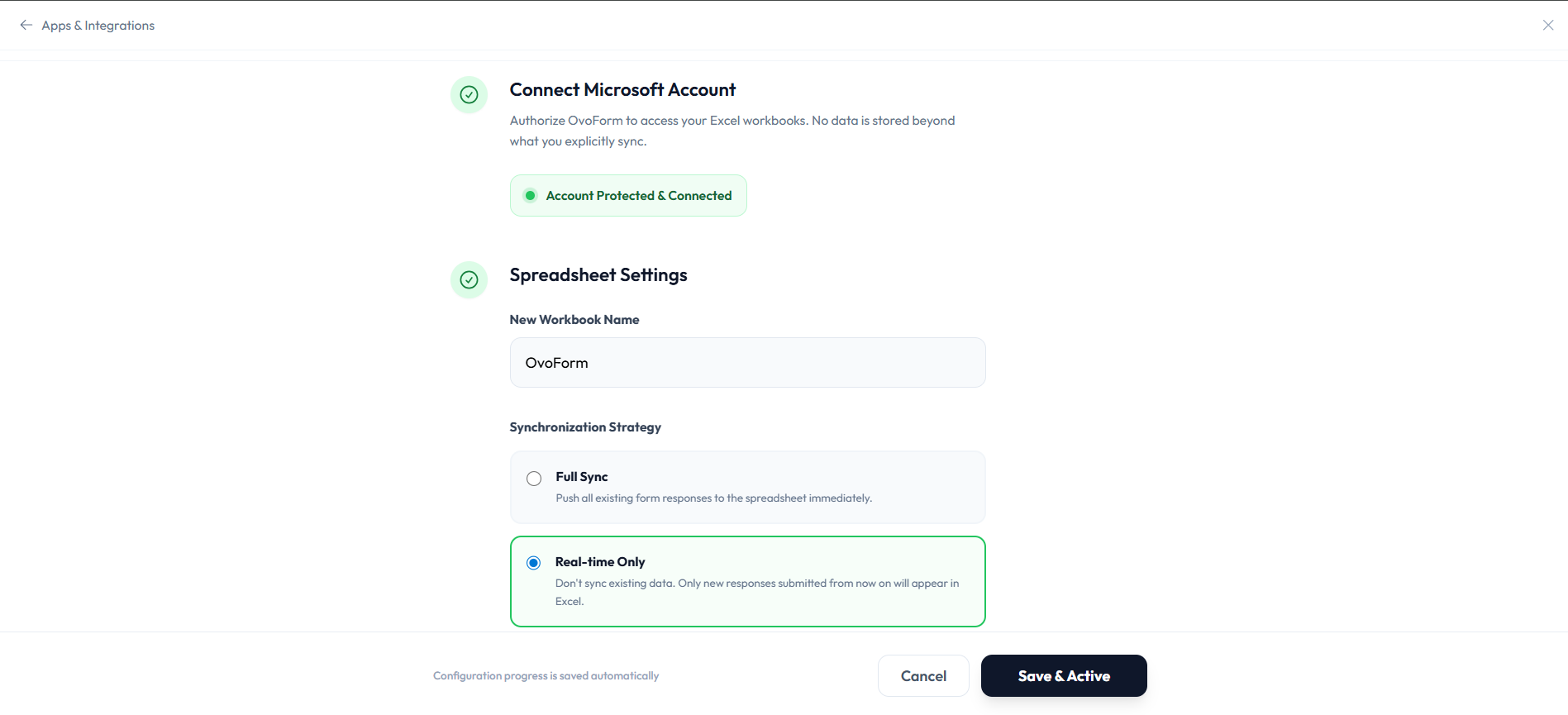
In Spreadsheet Settings, enter the New Workbook Name.
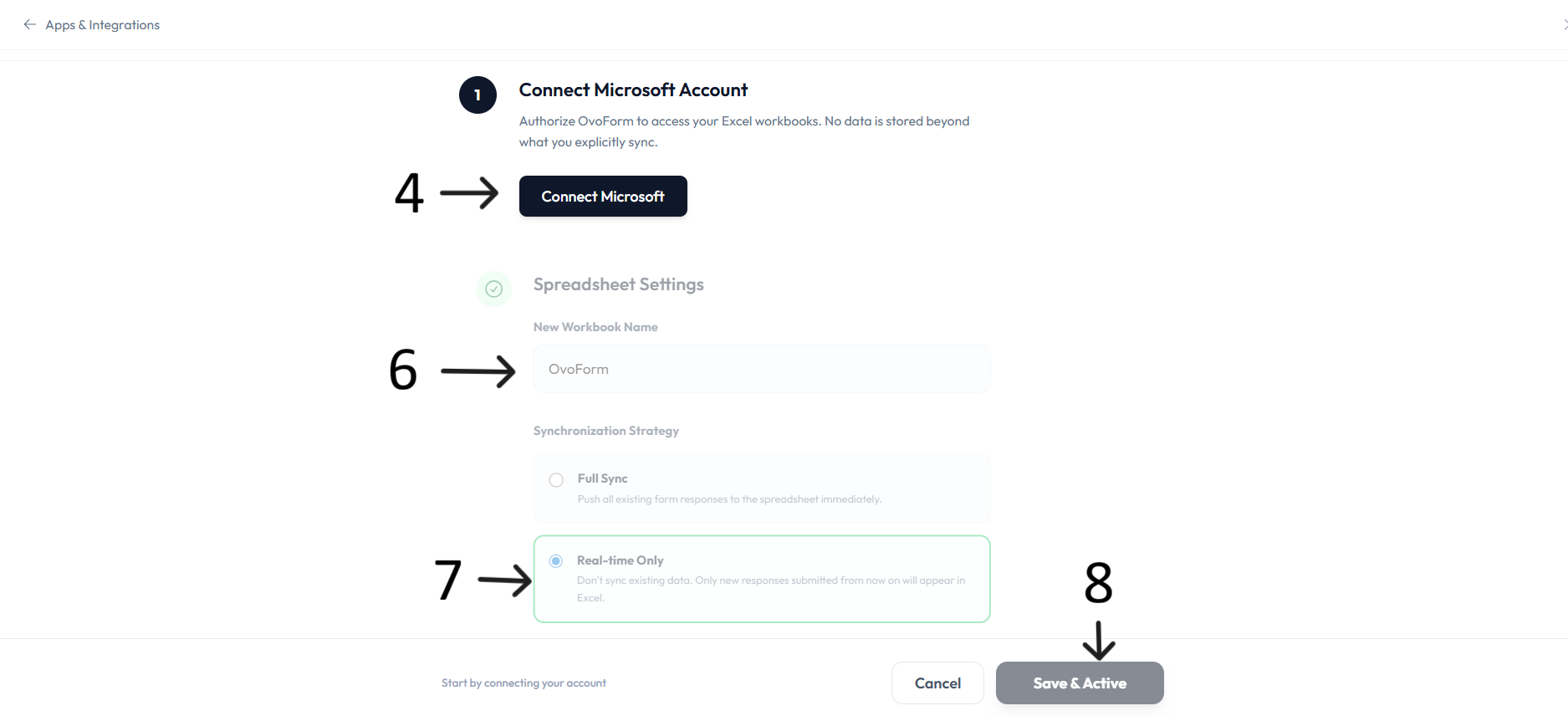
In Synchronization Strategy, choose Full Sync or Real-time Only.
Click Save & Active to complete setup.
New form responses now sync automatically to Microsoft Excel.
What you can do
Automatically sync form responses to Excel.
Store data in OneDrive workbooks.
Choose Full Sync to push existing responses.
Choose Real-time Only to sync only new submissions.
Use Excel tools for reporting and analysis.
Resources
Help center: available via integration page.
Terms of service: available via integration page.