
Free Tool
Cover photo maker
Make a Facebook or LinkedIn cover that still works after the mobile crop and the profile photo have taken their pieces. Free, no signup.
A cover photo is the wide banner across the top of a Facebook page or a LinkedIn profile. Facebook shows it at 820×312 on desktop and 640×360 on mobile; LinkedIn uses 1584×396 for a personal profile and 1128×191 for a company page. No single file is the right shape for all of them, so the useful skill is designing something that keeps working as each one trims it.
From blank to uploaded
- 1
Pick the platform first, not last. The size row has Facebook cover, LinkedIn profile and LinkedIn company page as separate buttons. Choosing before you design means you are composing inside the real frame instead of discovering the crop after the fact.
- 2
Name the thing, briefly. An organisation name and a half-line of what it does is the whole brief for a cover. The Placement grid keeps it in the upper-left, clear of the profile photo below and the edges the phone crop removes.
- 3
Export once per platform. Download, then switch the size button and download again — the background, palette and copy stay put while the frame changes. Save look keeps the whole configuration in a file if you want to come back to it.
Why covers break, and what survives
The defining awkwardness of a cover photo is that you upload one file and the platform renders at least two pictures from it. Facebook’s desktop layout wants a wide, shallow band; its mobile layout wants something closer to a letterbox turned on its side. The file you provide has to contain both, which means the only truly safe area is the overlap — the middle, with generous margins all round.
Work out where that overlap falls and the rest follows. On a desktop you get the full width and less height; on a phone you lose width at both ends and gain a little vertically. Content placed dead centre is seen by everyone. Content pushed toward a left or right extreme is desktop-only, which is the wrong way round, because the majority of the people looking at your page are holding a phone.
Then there is the profile photo, which sits on top of the cover rather than next to it on both networks, anchored to the lower left. It is not a small overlay either — on a page layout it can claim a meaningful fraction of the cover’s height. Anything in that corner is either hidden or, worse, half-hidden. Treating the lower-left as unavailable is the simplest rule that keeps you out of trouble, and it is why the preset above starts with its copy in the opposite corner.
Text deserves a word of caution specific to this format. A cover is short — 312 pixels tall on Facebook, under 200 on a LinkedIn company page — so a sentence of any length ends up either tiny or wrapped into a block that fills the whole band. Both read badly. The format suits a name and a few words, which is also what visitors need from it: they already clicked through to you, and the cover’s job is to confirm they are in the right place, not to pitch.
Lastly, resist the urge to pack the cover with information that lives better elsewhere. Phone numbers, addresses and opening hours all have dedicated fields on both platforms, where they are selectable, linkable and indexable. Baked into an image, they are none of those things, and they go out of date silently. A cover that is handsome and empty of detail ages far better than one carrying facts that need maintaining.
Cover and banner sizes
| Size | Pixels | Stays visible | What it asks for | Source |
|---|---|---|---|---|
| Facebook cover | 820×312 | 640×312 Desktop shows 820x312 and mobile shows a taller, narrower 640x360 crop — only the centre 640 wide appears on both. | Displays at 820x312 on desktop and 640x360 on mobile. | Facebook Help — page cover photos Published guidance; not read from the platform’s own docs on this date. |
| LinkedIn banner (profile) | 1584×396 | 1100×300 Your profile photo sits over the lower-left on desktop and the banner crops shorter on mobile. | 1584x396 (4:1), JPG or PNG, under 8 MB. | LinkedIn Help — add or change your background photo Published guidance; not read from the platform’s own docs on this date. |
| LinkedIn banner (company page) | 1128×191 | No crop | 1128x191 recommended; larger 4:1 uploads are accepted and scaled down. | LinkedIn Help — edit your Page Published guidance; not read from the platform’s own docs on this date. |
Specs verified October 2026.
Building the same look for an X profile too? That one is a 1500×500 strip with its own crop rules — the X header maker is set up for it.
One made with this tool
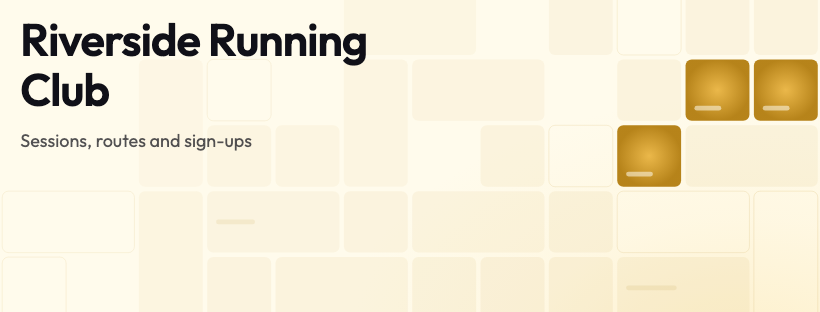
An 820×312 Facebook cover: name and one line of explanation in the upper-left, clear of the profile photo, with the quiet corner of the artwork underneath the words and the busier part pushed to the right.
Related free tools
Or browse all free tools.
FAQs
Frequently Asked Questions
It displays at 820×312 on a desktop browser and 640×360 on a phone — a wider, shorter shape on one and a narrower, taller one on the other. The editor starts at 820×312 and marks the band that appears in both, which is the part you should treat as the real canvas.
A personal profile takes 1584×396, and a company page asks for 1128×191. They are different shapes as well as different sizes, so a banner designed for one looks wrong stretched onto the other. Both are in the size list above — switch between them and the preview re-crops.
You can, but you will be making compromises on both. A Facebook cover is roughly 2.6:1 and a LinkedIn profile banner is 4:1 — far wider and flatter. The sensible approach is to build the look once, save it, then switch size and re-export: the artwork and colours carry over, and each file gets the crop its platform expects.
Because the mobile view is not a scaled-down desktop view, it is a different crop. Phones show a taller, narrower slice, so the left and right extremes vanish while a little more top and bottom appears. Anything that reached the far edges — a logo in the corner, a line of text running the full width — is what disappears.
On the lower-left on both Facebook pages and LinkedIn profiles, laid over the cover rather than beside it. The preset above keeps its copy in the upper-left for that reason: high enough to clear the avatar, far enough from the right edge to survive the mobile crop.
No. There is no signup, no email step and no watermark on the file. The cover is generated in your browser and the download is a plain PNG at whichever size you have selected.
Ready to Build Smart Forms with AI?
Ovoform is your gateway to effortless, intelligent, and high-performing funnel experiences to expand your global reach. Build smarter forms, automate form workflows, and gather powerful insights — all in minutes.
Get Started FreeNo credit card required. Unlimited responses.