
Free Tool
Blob generator
Make smooth organic shapes for a landing page, a slide or an app screen — then take the SVG. Free, no signup.
A blob is a smooth closed shape with no straight edges and no symmetry — an organic counterweight to the rectangles a screen is otherwise made of. It is decoration rather than content, which decides almost everything about how to use one: export it as SVG, put it behind your layout, and hide it from assistive technology.
Generating a shape you like
- 1
Reshuffle for a silhouette. Each press of S redraws the shape with new wobble. If a variation is close but not right, type a nearby number into Seed in the Advanced panel — neighbouring seeds give you genuinely different shapes, and the number is how you get a particular one back later.
- 2
Strip it back, or build it up. The Layers chips in the Advanced panel switch parts of the composition off: turn off Structure for the shape alone with no outlines behind it, or off Detail to drop the scattered dots. A single flat blob and a layered one are both one click away.
- 3
Copy the SVG. The ⋯ menu copies the markup to your clipboard, which is usually faster than a round trip through a file — paste it into a component, give it
aria-hidden="true", and position it behind your content.
Putting one behind your layout
A blob almost always wants to sit behind content, bleeding off an edge, with the text sitting on
clear space. Absolute positioning inside a relatively positioned section does that, and
overflow: hidden on the
parent keeps it from adding a scrollbar:
.panel {
  position: relative;
  overflow: hidden;      /* the blob bleeds past the edge on purpose */
}

.panel__blob {
  position: absolute;
  inset-block-start: -12%;
  inset-inline-end: -8%;
  inline-size: min(52%, 460px);
  z-index: 0;            /* behind the content, above the panel background */
  pointer-events: none;  /* decoration must not eat clicks */
}

.panel > * { position: relative; z-index: 1; }
What a blob is for, and when it stops working
Interfaces are built from rectangles — viewports, cards, inputs, images — and the regularity that makes them readable also makes them inert. An organic shape is the cheapest available contrast to all that geometry. It reads as drawn rather than computed, and because it has no sharp corners it can sit behind text without competing for the edges that the eye uses to parse a layout.
That suggests where they belong: as a backdrop to a single panel, a soft mass behind a feature illustration, the thing that stops an empty state looking broken, or a shape bleeding off one side of a slide. In each case the blob is doing one job — occupying space pleasantly so the content has somewhere to sit — and the shape itself is not asking to be looked at.
They stop working when they multiply. Three blobs in different colours on one screen stop being a background and start being a composition, one that nobody designed and that changes every time someone adds a section. If you want more than one on a page, give them the same palette and keep them far apart, or accept that you are now doing illustration rather than decoration and treat the result accordingly.
The second failure is contrast. A blob behind body text raises the same question any coloured background does: does the text still clear its contrast ratio over the darkest part of the shape? A pale blob is safe almost anywhere; a saturated one is safe only where no text crosses it. The simplest discipline is to keep the shape out from under paragraphs entirely and let it occupy margins, corners and empty halves — which also happens to be where it looks best.
Technically there is not much to get wrong, with two exceptions worth stating. A decorative
shape should be invisible to assistive technology, so an inline SVG needs
aria-hidden rather than a
description of its curves. And it should never intercept input: a large absolutely positioned
SVG sitting over a button will swallow the click unless you set
pointer-events: none,
which is the single most common bug in decorative-shape layouts.
One made with this tool
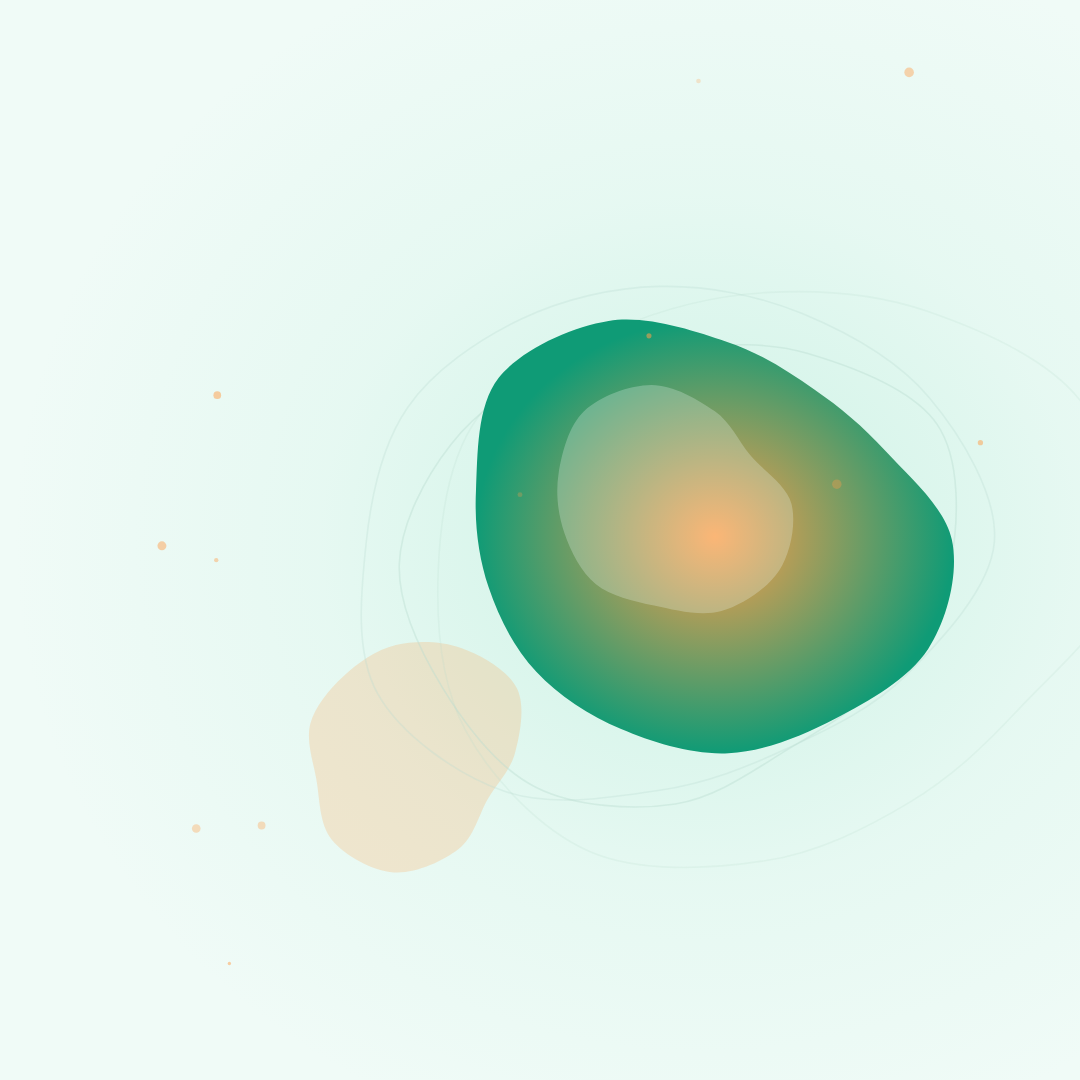
A 1080×1080 blob in the Tropic palette: the main shape, a paler sibling overlapping it, and the faint outlines of earlier iterations behind both. Exported as SVG this is a few kilobytes.
Related free tools
Or browse all free tools.
FAQs
Frequently Asked Questions
Use the ⋯ button beside Download: “Download SVG” saves the file, and “Copy SVG to clipboard” puts the markup straight on your clipboard for pasting into a component or a stylesheet. The shape is drawn as cubic Bézier curves, so the SVG is small and stays smooth however large you scale it.
For a decorative shape, place the SVG as a background image or inline it in the markup and position it absolutely behind your content. If you want text to flow around the curve, that is a different mechanism — CSS shape-outside with a path — and it needs a float on the element, which is worth knowing before you plan a layout around it.
Because every variation is generated from the same smooth base with a small amount of wobble, so the family resembles itself by design. Press S to reshuffle for a different silhouette, and switch off the Structure layer if the faint outlines behind the main shape are what is reading as circular.
Square, 1080×1080, is the sensible default and what the editor loads — a blob is usually dropped beside content rather than stretched across a page, and a square frame keeps the shape from being distorted by the crop. If you need it to fill a wide area, switch to 16:9 and use the Crop panel to decide which part of the shape fills the frame.
No — it is decoration, so it should be hidden from assistive technology rather than described. If you inline the SVG, add aria-hidden="true" to it; if you place it with CSS as a background image, it is already invisible to screen readers, which is the correct outcome for a shape that carries no information.
Yes — no signup, no email, no watermark, and commercial use is fine. Everything runs locally in your browser, so nothing you make is uploaded anywhere.
Ready to Build Smart Forms with AI?
Ovoform is your gateway to effortless, intelligent, and high-performing funnel experiences to expand your global reach. Build smarter forms, automate form workflows, and gather powerful insights — all in minutes.
Get Started FreeNo credit card required. Unlimited responses.