
Surveys

Learn how to design a better **file upload form** that reduces friction and makes submissions easier for users. This guide covers essential file upload form best practices, including clear file requirements, upload progress, success confirmations, mobile-friendly design, accessibility, security, multiple file uploads, and specific error messages for a smoother user experience.
Nikhil Dogra
September 28, 2026
Picture this. A candidate is applying for a job on your website. They have their resume ready, they are excited about the role, and they just want to submit it and move on with their day.
Instead, the upload button does not respond on their phone. They try again. Nothing happens. They switch to their laptop, find the file again, and this time it uploads, but there is no confirmation that it worked. They submit the form anyway, unsure if their resume actually went through.
A few days later, they follow up by email because they were never sure the upload succeeded. Your HR team must manually check, resend instructions, or ask the candidate to try again.
This kind of friction is avoidable. A good file upload form does not just accept a file. It tells users what is allowed, shows that the upload is working, confirms when it is complete, and communicates how their files are handled.
In this guide, we will look at what makes a file upload form work well, the problems that cause unnecessary friction, and the practices businesses can use to create a smoother and more secure upload experience.
A file upload form is a form on a website that lets users attach a document, image, or other file as part of submitting information. Job applications, insurance claims, loan applications, customer support tickets, event registrations, and internal business workflows can all require file uploads.
Although the upload field may look like a small part of the form, it can be one of the most important steps in the experience. Users may be sending a resume, ID proof, invoice, contract, screenshot, or photo of damage. They need to know that the correct file was selected and that it reached the business successfully.
A well-designed document upload form therefore needs to make three things clear: what the user can upload, what is happening during the upload, and what happens after the file is received.
Most upload-related friction does not happen because users do not have the file. It happens because the form does not clearly guide them through the upload process.
When accepted formats, size limits, or upload status are unclear, users may repeatedly try files that cannot be accepted. When an upload succeeds without visible confirmation, they may wonder whether it worked and submit the form again. On mobile, an awkward file picker or poorly sized button can make the process even harder.
A better upload form removes these points of doubt. It tells users exactly what is expected, provides feedback while the file is being uploaded, and confirms when the process is complete.
If the form handles sensitive documents, secure file upload practices are equally important. File validation, access controls, secure transmission, and appropriate storage should be considered alongside the user experience.
Several recurring problems can make an online file upload form frustrating.
No visible file requirements. Users only discover the format or size limit after an upload fails. Requirements should be displayed beside the upload field before the user chooses a file.
Single-file limitations. Some workflows naturally require several documents, such as a resume and cover letter or multiple photos for an insurance claim. Forcing users through separate submissions creates unnecessary work.
No progress indicator. Larger files can take time to upload. Without visible progress, users may assume the page has frozen or that the upload failed.
Poor mobile experience. File selection, camera access, and touch controls need to work properly on smaller screens. This is particularly important when users are uploading photos directly from their phones.
Weak security practices. Accepting files based only on their extensions is not enough. File uploads should be validated and handled securely on the server.
Not every business needs the same upload rules. A job application may need PDF or DOCX documents, while an insurance claim may need several image files.
Start with what your team actually needs to process the submission, then keep the upload requirements as simple as possible for the user. Avoid accepting unnecessary formats just because the form technically can.
Tell users which formats are accepted, such as PDF, DOCX, JPG, or PNG, and provide the maximum file size next to the upload field. Clear requirements prevent avoidable errors.
For example, instead of displaying only “Upload your document,” use something like:
Upload your resume — PDF or DOCX, up to 10 MB.
This immediately tells the user what is expected.
Drag-and-drop can make desktop uploads faster, but it should never replace a standard “Choose File” button.
Mobile users and people using different devices still need a simple file-picker option. The upload interface should work whether someone drags a file onto the page or selects it manually.
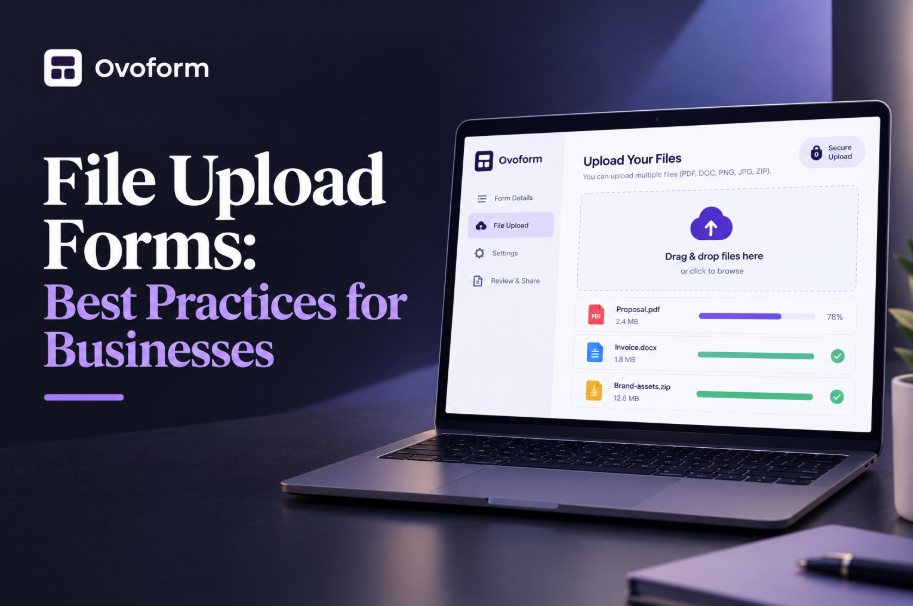
A progress bar, percentage, or clear loading state reassures users that the upload is active. This is especially useful when files are larger or the connection is slower.
Without feedback, users may refresh the page, close the browser, or click submit repeatedly because they are unsure whether anything is happening.
After a file is uploaded, show its filename and a clear success state. Where appropriate, a thumbnail or preview can help users confirm they selected the correct file.
Give users an easy way to remove or replace the file as well. This is particularly useful when someone accidentally selects the wrong document.
Browser-side checks improve the user experience, but they should not be the only protection.
Server-side validation should check file size and actual file content rather than relying only on the filename or extension. Businesses should also use appropriate malware scanning and secure storage practices for their workflows.
For forms that collect sensitive information, following broader online form security practices can help businesses protect both uploaded files and other submitted data.
If a process naturally requires several documents, let users attach them in the same workflow.
For example, a rental application may require identification, proof of income, and supporting documents. Allowing multiple attachments can make the process considerably easier than requiring separate submissions.
Make the file picker easy to use, provide accessible touch targets, and support workflows such as choosing an existing photo or taking a new one when relevant.
Test the upload process on both iOS and Android devices rather than assuming that a desktop experience will automatically translate well to mobile.
Replace a generic “Upload failed” message with useful guidance such as:
File exceeds 10 MB
Only PDF and JPG files are accepted
This file type is not supported
The upload was interrupted. Please try again.
Specific errors tell users what to change instead of leaving them guessing.
A good upload experience is not only about the upload button. Users should understand the complete journey from selecting a file to submitting the form.
Before upload, show requirements such as accepted formats and maximum size. During upload, provide a visible progress state. After upload, show the filename and confirmation. If something goes wrong, explain the problem and provide a way to retry or replace the file.
When users are submitting sensitive documents, explain why the file is being collected, who may access it, or how it will be used when that information is relevant to the workflow. Clear communication can reduce hesitation and help users understand what happens after submission.
Accessibility matters here as well. Upload controls, status messages, errors, and progress information should not rely only on color or visual icons. They should also be understandable to people using keyboards or screen readers.
For more complex forms, conditional logic can also be useful. For example, a form could show different upload requirements depending on whether a user selects “Job Applicant,” “Business Customer,” or another relevant category.
A candidate may need to upload a resume and optionally provide a portfolio or writing sample. The form can accept selected document formats, show the uploaded filename, and allow the candidate to replace a file without restarting the application.
A policyholder may need to submit several photos of property or vehicle damage. A mobile-friendly form can make it easy to select or capture images, display each uploaded file, and confirm that the required attachments were received.
A customer can attach a screenshot of an error message to help a support team understand the issue. A preview and remove option lets the customer check the attachment before submitting the ticket.
For broader customer experience workflows, a well-structured customer feedback form can also help businesses collect information after a support interaction.
Some registrations may require supporting documents for verification. The form should clearly explain what document is needed, why it is collected, and what users should expect after submitting it.
Fewer failed submissions. Clear requirements and validation help users provide acceptable files the first time.
Fewer support requests. When users can see that an upload succeeded, they are less likely to contact support simply to ask whether their file was received.
Better completion experience. A smooth upload step removes friction from the overall form and can help users finish the process without unnecessary interruptions.
Improved trust. Users may be sharing personal or business documents. Clear requirements, visible status, and transparent file handling can make the experience feel more reliable.
Easier internal processing. Consistent file types, naming information, and structured submissions can make it easier for teams to review and organise incoming documents.
A filename ending in an accepted extension does not by itself establish that the file is safe or actually contains the expected content. Validate files appropriately on the server.
If the limit is smaller than the files users normally need to submit, they will encounter unnecessary errors. Set practical limits for the use case and communicate them clearly.
Silence during a multi-second upload can make a page feel broken. Give users a visible indication that the process is still active.
If an account is not genuinely required, adding registration before a simple upload creates another barrier.
Upload controls, instructions, errors, and status messages should work for keyboard users and screen readers, not just users interacting visually.
Adding unnecessary options or instructions can make a simple task feel harder. Show users the information they need at the moment they need it.
Define the purpose of the upload. Decide exactly what users need to submit and why.
Choose supported formats and practical size limits. Accept only the file types your workflow can process and set limits that fit real user needs.
Design the upload field clearly. Display requirements beside the field and provide a standard file-picker button.
Add drag-and-drop where useful. Make it an enhancement for desktop users, not the only upload method.
Add progress and success states. Let users see when an upload is active and confirm when it is complete.
Add validation and security controls. Validate files server-side, apply appropriate malware scanning, and use secure storage and transmission practices.
Test the complete experience. Test on desktop and mobile, with different file sizes, accepted and rejected formats, slow connections, and keyboard or screen-reader navigation.
Monitor and improve. Review failed uploads and support requests to identify where users are getting stuck.
Platforms such as Ovoform can make this process visual and code-free. Businesses can create forms with file upload fields, apply relevant restrictions, collect submissions, and connect integrations without building the entire experience from scratch.
Businesses can also explore form templates when they want to start with a pre-built structure and customise it for their workflow.
A file upload form may be a small part of a website, but it can have a significant effect on the user experience. People are often sending important documents, images, or business files, so they need confidence that the process is working and that their information is being handled appropriately.
The best upload forms make requirements clear before selection, provide feedback during the upload, confirm success afterward, and handle files securely. They also account for mobile users, accessibility, and the specific needs of the workflow.
If your current upload form generates failed submissions, duplicate files, or support questions, start with the basics: make requirements visible, improve upload feedback, provide useful error messages, and test the complete flow across devices.
Small improvements at this step can make the overall form easier to complete and easier for your team to manage.
Create surveys, FAQs, and feedback forms in minutes with Ovoform — no code required.
Get started freeStart building with Ovoform today — free forever, no credit card required.
Get Started For Free