Surveys

Embedding a form on a WordPress website is one of the simplest ways to improve user engagement and generate more leads. You can add forms using plugins, shortcodes, HTML embed codes, Elementor widgets, or Gutenberg blocks. Choose the method that best fits your workflow, keep the form easy to complete, and integrate it with your existing marketing or CRM tools to automate follow-ups and streamline data collection.
Nikhil Dogra
August 24, 2026
Imagine this.
You've spent days creating the perfect WordPress website. Your homepage looks professional, your services are clearly explained, and your blog is attracting visitors from Google.
But there's one problem.
People have no easy way to contact you.
No enquiry form.
No booking form.
No newsletter signup.
No lead generation.
Every visitor who wants to reach you has to copy your email address manually or worse, leave your website altogether.
This happens more often than you might think.
Whether you're running a small business, an agency, an online store, a coaching website, or a personal portfolio, forms are what turn visitors into conversations, customers, and opportunities.
The good news?
Embedding a form on a WordPress website is surprisingly simple once you know the right method.
In this guide, you'll learn multiple ways to add forms to WordPress, when to use each approach, common mistakes to avoid, and how to create a smoother experience for your visitors.
Think about the last website where you booked an appointment or downloaded a free guide.
You probably filled out a form.
Forms quietly power nearly every interaction online.
They help businesses:
Collect enquiries
Generate leads
Accept bookings
Gather customer feedback
Process applications
Register event attendees
Build email lists
Qualify sales prospects
Without forms, websites become digital brochures instead of business tools.
You'll usually need two things:
A published form
The embed code, shortcode, or plugin integration
Modern form builders make this process almost automatic.
Many platforms generate a WordPress-friendly embed code in seconds.
This is the easiest method for most users.
Many form builders provide their own WordPress plugin.
Install the plugin.
Connect your account.
Choose your form.
Insert it into any page or post.
Publish.
That's it.
No coding required.
Beginners
Marketing websites
Business websites
Agencies
Blogs
A local dental clinic wanted patients to book appointments online.
Instead of asking visitors to email them, they added a booking form directly to the homepage.
Appointment requests increased because patients could schedule a visit without leaving the website.
The easier the process became, the more enquiries they received.
Many WordPress form plugins generate a shortcode.
It looks something like this:
[example-form id="123"]
Simply:
Copy the shortcode
Open your page
Paste it into the Shortcode block
Publish
WordPress automatically renders the form.
Contact pages
Landing pages
Blog posts
Sidebar widgets
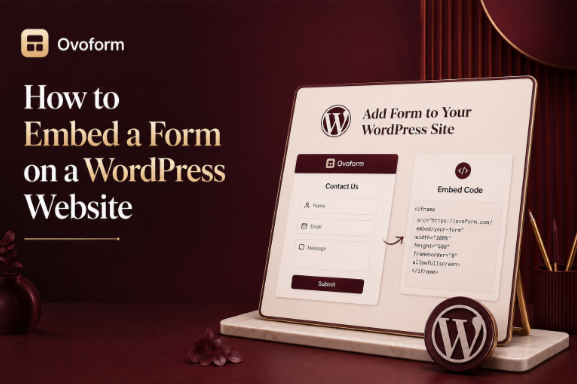
Many online form builders provide HTML embed snippets.
You'll usually see something like:
<iframe ...>
or
<script>...</script>
To use it:
Copy the embed code.
Open your WordPress page.
Add a Custom HTML block.
Paste the code.
Save.
WordPress displays the live form automatically.
Best for
Third-party form builders
CRM forms
Event registration
Surveys
If your website uses Elementor, embedding forms is even easier.
Simply:
Drag an HTML widget
Paste the embed code
OR
Drag the Shortcode widget
Paste the shortcode
Done.
The form appears exactly where you place it.
The default WordPress editor supports forms nicely.
Simply add:
Custom HTML block
Shortcode block
Plugin block (if available)
No additional configuration is usually needed.
Placement affects conversions more than most people realise.
Some high-performing locations include:
The obvious choice.
Visitors already expect to find your contact form here.
Perfect for service businesses.
A simple enquiry form removes unnecessary clicks.
Landing pages should usually contain one clear call-to-action.
A well-designed form keeps users focused.
Relevant forms inside blog articles often perform exceptionally well.
For example:
A blog about home renovation could include a "Request a Quote" form.
A fitness article could include a free consultation form.
Context matters.
A newsletter signup or quick enquiry form works well in the footer.
Visitors who scroll to the bottom are already engaged.
Different goals require different forms.
Examples include:
Simple communication.
Collect names, emails, company details, and interests.
Perfect for:
Clinics
Salons
Coaches
Consultants
Understand customer satisfaction.
Collect attendee information before events.
Accept resumes and candidate details.
Usually caused by:
Incorrect embed code
Missing plugin
JavaScript conflicts
Double-check the installation.
Often caused by:
Theme CSS conflicts
Custom styling
Responsive issues
Test the form on desktop and mobile.
This is one of the most common WordPress issues.
Possible causes include:
Mail server configuration
Spam filters
SMTP settings
Using SMTP usually improves email delivery.
Heavy scripts can reduce page speed.
Keep forms simple.
Only ask for information you actually need.
Embedding a form is only half the job.
Getting people to complete it is the real goal.
Here are some proven practices.
People dislike lengthy forms.
Ask only essential questions.
Avoid confusing field names.
Instead of:
"Additional Information"
Try:
"Tell us about your project"
Much clearer.
More than half of website visitors browse on mobile devices.
Always preview your forms on smaller screens.
Instead of showing every field at once, display only relevant questions.
For example:
If someone selects "Book a Demo," show scheduling options.
If they choose "General Question," hide those fields.
This creates a cleaner experience.
After submission, tell users what happens next.
For example:
"Thanks! We'll get back to you within one business day."
Small reassurance builds trust.
Sarah runs a small accounting practice.
Initially, her website displayed only an email address.
Visitors had to:
Open their email app
Copy the address
Write a message manually
Many never completed the process.
She replaced the email address with a simple enquiry form.
Now visitors could send questions in under a minute.
Within a few weeks, she noticed more consultation requests without increasing her advertising budget.
Sometimes improving conversions isn't about getting more traffic.
It's about making it easier for existing visitors to take action.
Today's form builders do far more than collect information.
They can also:
Send confirmation emails
Trigger workflows
Connect with CRMs
Notify your team instantly
Reduce manual data entry
Organise submissions automatically
Integrate with marketing tools
Support conditional logic and multi-step forms
This helps businesses save time while creating a smoother experience for visitors.
Your website can attract thousands of visitors, but without an easy way for people to get in touch, many potential opportunities simply disappear.
A well-placed form removes friction, encourages action, and creates a smoother experience for every visitor. Whether you're collecting enquiries, booking appointments, registering event attendees, or generating leads, embedding a form on WordPress takes only a few minutes, but the long-term impact on conversions can be significant.
The best forms aren't the most complex. They're the ones that feel effortless to complete.
Focus on clarity, keep your forms concise, optimise them for mobile devices, and place them where visitors naturally expect to take the next step.
Create surveys, FAQs, and feedback forms in minutes with Ovoform — no code required.
Get started freeStart building with Ovoform today — free forever, no credit card required.
Get Started For Free