Form Builders

Learn what an online form builder is, how it works, and how to choose the right one for your business. This guide covers essential features, AI-powered form creation, conditional logic, security, and a comparison of popular form builders to help you create efficient, user-friendly forms with confidence.
Ovoform Team
June 29, 2026

A catering enquiry form with every possible question visible loses respondents before they reach the middle of the form. Data shows that form conversion rates drop when a layout displays fields that do not apply to the person filling it out. That friction is exactly what an online form builder is designed to eliminate.
If you're evaluating form builders for the first time, this guide covers what they are, how they work, which features actually matter, and how to choose one without wasting a trial period on the wrong tool.
A marketing agency onboarding five new clients a month often runs that process entirely through email. One client mentions their budget in the first message. Another forgets it and gets asked again three days later. By the time a project brief is complete, the team has gone back and forth over email several times just to gather what one form could collect in a single submission.
The same pattern shows up with spreadsheets. A property manager tracking maintenance requests in a shared sheet ends up with duplicate rows when two tenants report the same issue, and no consistent record of which photos belong to which request. An event organiser tracking RSVPs the same way has to manually update attendee counts and cross-check dietary requirements against a separate email thread as registrations grow.
A structured form fixes this by requiring the same fields from everyone, every time, and storing every response in one searchable place. Nothing depends on someone remembering to update a second document.
An online form builder is software that lets you create digital forms, such as contact forms, surveys, registrations, and applications, without writing code. You design the form in a visual editor, publish it as a link or embed, and responses are collected automatically instead of arriving as email attachments or scattered spreadsheet rows.
Whether you call it a form builder, form creator, or form generator, the job is the same: collect accurate information without manual re-entry on either end.
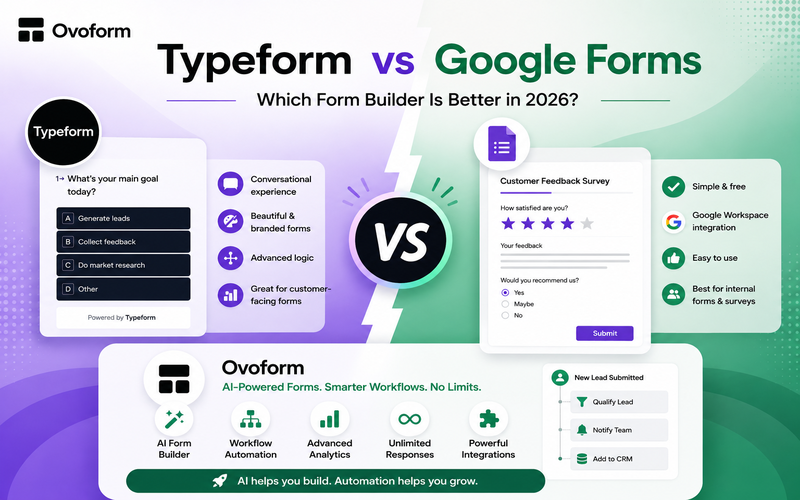
Ovoform: Best for teams needing powerful conditional logic and easy integrations.
Typeform: Best for conversational forms and a visually engaging experience.
Google Forms: Best for quick, no-frills surveys and internal use.
The interface varies by platform, but the process is consistent across nearly all of them.
Most builders include templates for common scenarios, registrations, surveys, applications, and intake forms. Starting from a template usually means fewer total edits than building every field from a blank canvas, but every field stays fully editable either way.
You select the fields you need: name, email, dropdowns, file uploads, date pickers, rating scales. The forms that convert best ask only for what's genuinely required; every extra field is one more reason for someone to abandon the form before submitting.
This is where a form goes from generic to relevant. Take that catering enquiry form again. If the customer selects Corporate Event, the form shows:
Company name
Number of employees
Meeting schedule
If they select Wedding instead, those three fields disappear and are replaced with:
Ceremony location
Guest count
Dietary preferences
The form behind the scenes might have a dozen or more total fields, but no single visitor sees all of them. That's a setting, not a redesign, and it's one of the most effective ways to keep a long form from feeling long.
Most builders let you share a form as a direct link, an embed on your website, a QR code for in-person events, or a block inside an email campaign. Once it's live, responses land in a dashboard you can search, filter, and export, without copying from email attachments into a spreadsheet by hand.
The same platform typically covers more ground than people expect on their first form:
Lead generation forms - capture enquiries from website visitors before they leave.
Customer feedback forms - satisfaction scores and reviews collected right after a purchase or appointment
Event registration forms - attendee details, session selection, dietary needs, and automated confirmation emails
Job application forms - CVs, portfolios, and screening questions in one standardized submission instead of scattered email attachments
Internal forms - leave requests, expense reimbursements, and IT tickets that would otherwise live in someone's inbox
Using one tool for both customer-facing and internal forms keeps response data in a single place instead of being split across several systems.
Not every builder is built for the same job. A few features separate the ones worth paying for from the ones that look fine in a demo and add friction in practice.
Covered above this is the feature that keeps a long form from feeling long by only showing relevant questions.
Real-World Example: A mid-sized catering company switched to Ovoform and used conditional logic to show only relevant menu options. As a result, completion rates jumped, and staff spent less time sorting incomplete or irrelevant submissions.
A growing share of form traffic now comes from mobile devices. A form that looks fine on a desktop monitor can have unreadable labels or a submit button below the visible screen on a phone, and you won't catch that unless you open the form on one yourself before publishing.
A contact form with no validation regularly produces unusable entries: phone numbers missing a digit, names typed into the email field. Required-field and format validation catches that at the point of entry, instead of after someone on your team has to call back and ask again.
Form data needs somewhere to go. A new enquiry submitted through your site should be able to notify your sales team, create a CRM contact, or update a spreadsheet automatically, without requiring a separate automation subscription just to connect two tools that should talk to each other natively.
"Security" on a pricing page often means little more than an SSL padlock icon that's the baseline, not the differentiator. The real questions: Is data encrypted both in transit and at rest? Where is it physically stored? Can you set different permission levels so a part-time assistant can view responses without exporting the full database?
When evaluating form builders, check for accessibility features like keyboard navigation, screen reader support, and clear error messages. Accessible forms ensure everyone can respond, expanding your reach and meeting legal requirements.
A clinic collecting patient intake forms needs HIPAA-aligned handling. A bakery collecting cake orders doesn't need that level of compliance, but does need basic GDPR-compliant handling of EU or UK customer data. Confirm the plan you're paying for covers the data you're actually collecting, rather than assuming "secure" means the same thing for every business.
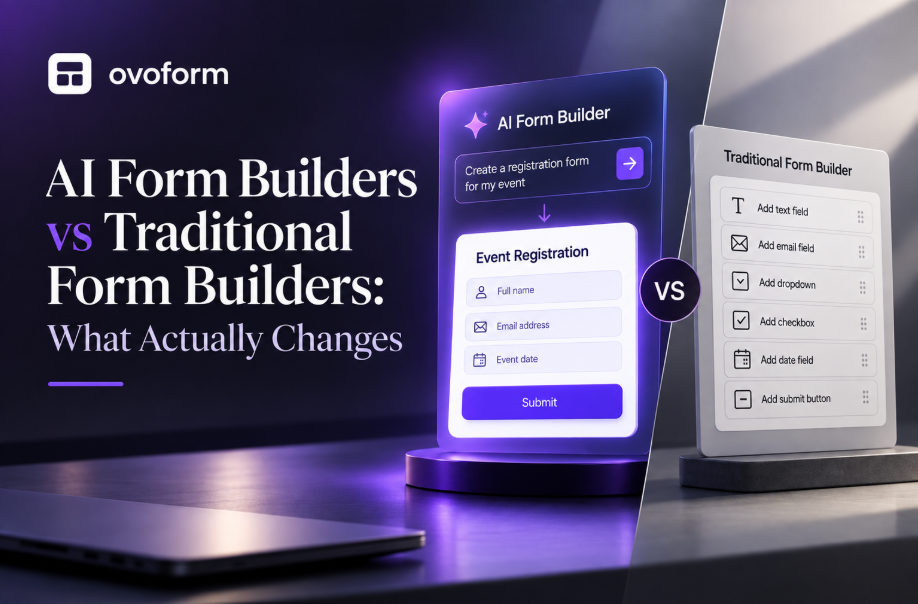
Some newer platforms let you skip the blank-canvas step entirely. Type a prompt like "create a customer satisfaction survey for a dental clinic," and the tool generates a draft: patient information fields, appointment details, a rating question, and an open comment box.
That draft still needs a human pass. AI-generated forms commonly include a field that doesn't apply to your specific business, a "company size" question on a form for a solo practice, for instance, so review before publishing isn't optional.
Traditional Form Builder | ||
Starting point | Generates a draft from a prompt | Built field by field, manually |
Setup time | Faster for a first draft | Depends on form complexity |
Best suited for | Teams publishing forms weekly | Teams building one or two forms a year |
Manual review needed | Yes, before every publish | N/A - you built every field yourself |
The advantage shows up most frequently. A team publishing one form a year doesn't gain much from AI generation, building from a template takes about the same time as editing an AI draft. A team publishing a new form every week saves real setup time, starting from a generated draft instead of a blank one each time.
Platform | Best For | Conditional Logic | AI Generation | |
Ovoform | Modern, no-code forms with AI-assisted creation | Yes | Built in | Yes |
Google Forms | Simple internal surveys | Basic | Limited | Yes |
Jotform | Large template library, high-volume teams | Yes | Limited | Yes |
Typeform | Conversational, customer-facing forms | Yes | Limited | Yes |
Rather than picking the platform with the longest feature list, match the tool to your actual workflow — a team running internal leave requests has different needs than one running customer-facing event registrations.
A few patterns account for most of the regret in switching form builders after the fact:
Choosing based only on the free plan. Some platforms charge per response, which gets expensive fast once a form is running on a busy landing page. Check the next pricing tier before you commit.
Skipping the mobile test. Review the form on your own phone, not just the desktop editor, before sharing the link.
Asking for more than you need. Every additional field is another reason to abandon the form. If a detail isn't always relevant, conditional logic should hide it rather than show it to everyone.
Not planning for growth. A simple contact form often becomes part of a larger workflow involving sales or support within a year. Picking a platform that scales with that avoids a second migration later.
Most of this comes down to one thing: the form builder should adapt to how your business already works, not the other way around. A client onboarding form, an event registration page, and an internal leave request all have different fields, different logic, and different places the data needs to end up.
Ovoform is built so that a non-technical team can set up that conditional logic, connect it to the tools they already use, and adjust the form later without rebuilding it from scratch.
Next Steps: Try building a simple form with your top-choice platform and share it with a colleague for feedback. Use their responses to refine your questions and logic before a wider rollout.
Choose a form builder that matches your real workflow needs, not just one with the most features.
Use templates and conditional logic to keep forms short and relevant for respondents.
Prioritize tools that allow easy updates and integrate smoothly with your existing software.
Test your form from a user’s perspective before deploying widely.
Create surveys, FAQs, and feedback forms in minutes with Ovoform — no code required.
Get started freeStart building with Ovoform today — free forever, no credit card required.
Get Started For Free